Search or browse all guides
Quick visual guide
Save from a card, then manage the saved set from Saved Ads.
- 1
Save from Discovery
Choose Save on the ad card. Use the arrow beside it for another save destination.
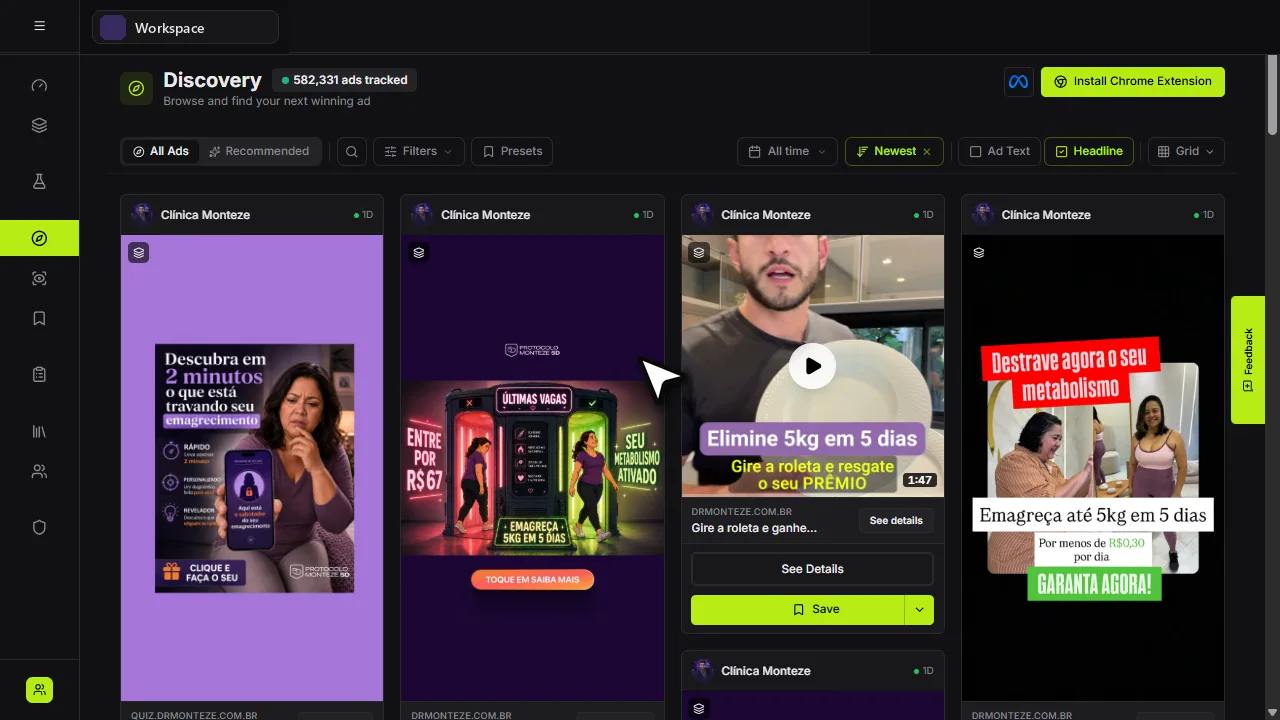 Save this ad
 - 2
Open Saved Ads
Use Filters, All time, Most Recent, and Grid to find a saved item quickly.
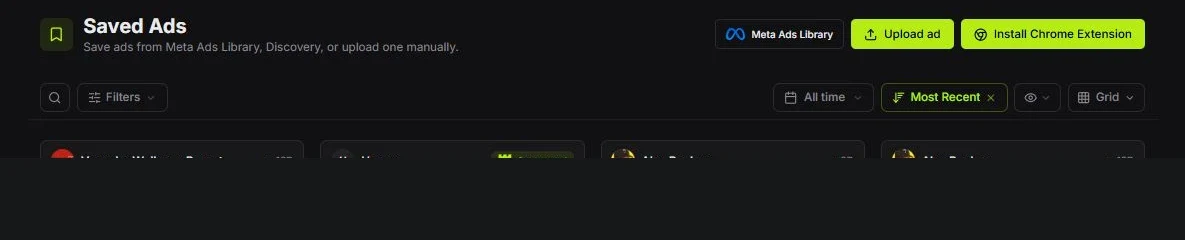 Find saved ads
 - 3
Add an outside ad
Choose Upload ad when the ad was not saved from Discovery or the extension.
Upload ad
Red labels show the exact control to use.
Watch the full walkthrough
Detailed referenceOpen this for definitions, limits, examples, and troubleshooting.
Folders, boards, and ads
Folders group boards. Boards group ads. An ad can be assigned to more than one board, while its source record remains in Discovery or Brand Tracker.
Save or unsave from an ad card
An outline bookmark means the ad is not saved. Select it to save the ad; the bookmark fills with Tartol lime and stays filled after you reload Discovery or a Brand Tracker ad library.
The bookmark is a split control on ad cards. Select the bookmark itself for a quick save with no board or folder, or select its chevron to choose a board or folder before saving. The destination menu lists folders and boards only; it does not repeat an All option because the main bookmark already performs that unassigned save.
On the Saved Ads page, assigned boards remain visible as labels beneath the card. Select the filled bookmark to remove the ad from Saved Ads, or select the chevron beside it to open the compact searchable board editor and change that ad's board memberships. The card returns to an outline bookmark elsewhere after the removal completes.
A simple organization system
- 1Create a folder per client or marketKeep top-level navigation stable.
- 2Create boards per questionExamples: Strong hooks, UGC openings, Offer framing, or Product demos.
- 3Rate selectivelyReserve five stars for ideas you would actually brief or test.
- 4Use short tagsTags work best as consistent labels such as hook, testimonial, comparison, or urgency.
Read running days
Ad cards show running days as a plain count such as 3D. Hover the badge to see Active or Inactive, the start and end dates, and a duration such as 3 Days. Active ads show Still running for the end date, and unavailable dates show Unknown. The count uses the stored running-day value when available and can update when newer ad observations arrive. This display is shared by Discovery, Brand Tracker, Saved Ads, feed views, and shared libraries.