Search or browse all guides
Quick visual guide
Review performance first, then open Campaign Creator when you are ready.
- 1
Open Campaign Creator
Choose Create Campaign in the upper-left of Ads Manager.
 Create Campaign
 - 2
Set account and date
Use the account selector and date control before reading performance.
Account and date - 3
Choose the level
Use Campaigns, Ad Sets, or Ads to work at the correct level.
Choose a level
Red labels show the exact control to use.
Detailed referenceOpen this for definitions, limits, examples, and troubleshooting.
What you need first
- Ads Manager, its submenu, and Launch on Meta actions are available to all signed-in workspace users. Connecting Meta requires owner/admin access; publishing requires publish_ads and an eligible plan.
- A Meta user who can access the intended ad account and Facebook Page, plus permission to create a new structure, add a Paused ad set beneath a selected existing campaign, or use an existing Meta ad set for a direct creative handoff.
- A live Meta app with the appropriate Marketing API access tier and advanced permission access.
- At least one Tartol-generated creative or image/video asset in Media Library.
- An HTTPS destination URL and final ad copy you are authorized to publish.
Use the four Ad Manager areas
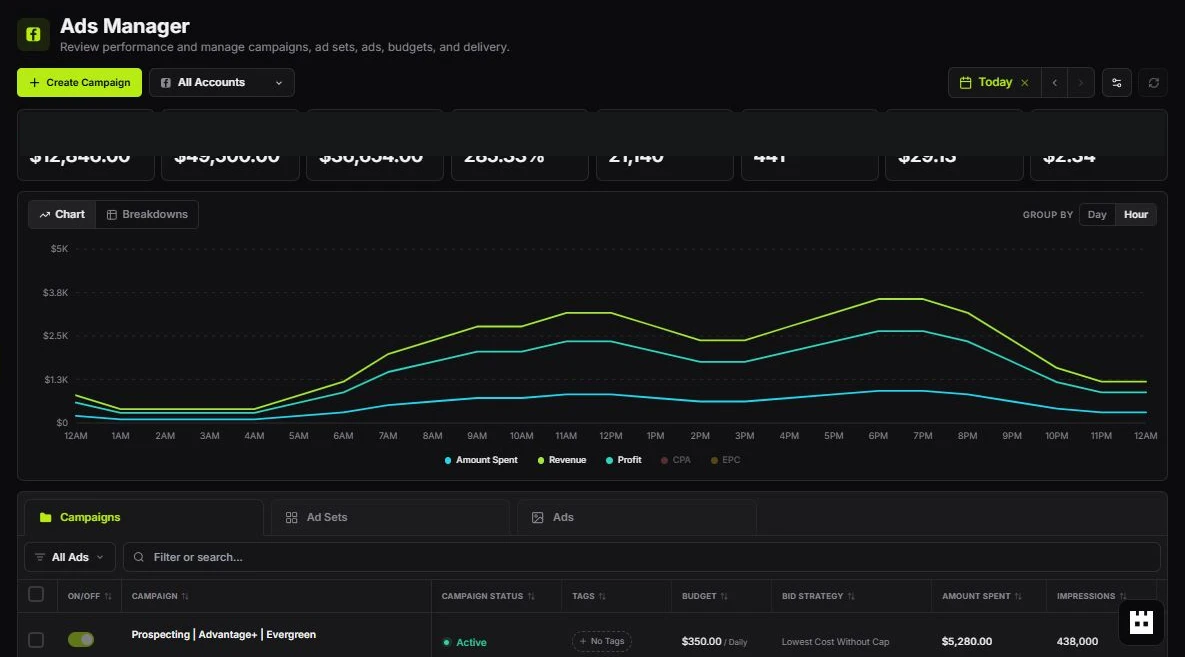
The Spent card shows ad spend for the selected accounts and date range.
| Area | Use it for |
|---|---|
| Ads Manager | Open /ad-manager to see expandable Statistics above the campaign workspace. Compare spend, revenue, net, ROI, clicks, conversions, CPA, and EPC, then use the pinned Campaigns, Ad Sets, and Ads grids below. The Statistics panel remembers whether you left it expanded or collapsed. Grid columns are configurable through footer presets (Suggested Columns (the default), Facebook Standard, and saved custom presets) and a Columns Settings modal with drag-to-reorder and Compare Columns that show change versus the previous period; column header menus sort, pin, autosize, or hide columns; budgets can be edited inline or in bulk; entities can be tagged, archived, and cloned as paused Meta copies; Export downloads the shown rows with the visible columns; and the footer pager offers 25, 50, or 100 rows per page. |
| Campaign Creator | Opened as a right-side drawer from the Create Campaign button on Campaigns. It starts directly in the Facebook Create Campaign stage, then moves through Review Variations and Add Automation & Publish. |
| Reporting | Open Traffic Sources, Ad Accounts, Campaigns, Ads, Custom Reports, or Queued Reports; filter the source and account, break down by day, month, or year, configure columns, and export CSV or Excel rows. |
| Media Library | Open the central workspace Media Library as a modal over the current Ad Manager page to upload, organize, and reuse images and videos without navigating away. |
Load and refresh performance
Switching Chart/Breakdowns or Day/Hour changes only the analytics panel and keeps the loaded KPI cards and campaign table visible. Each view loads once for the selected accounts and date range, then reuses its loaded results while you switch tabs. A new view may briefly show loading inside that panel. Refresh reloads the selected view and resets the other saved views; changing accounts or dates also resets them. Meta cooldowns and cache freshness still apply.
Ads Manager uses the full available page width with the same responsive side margins as Discovery. The campaign table and Statistics share the Meta connection check. The Chart view loads account totals and the selected daily or hourly timeline together; ad details and winner/loser rankings load when you open Breakdowns. Refresh loads the latest available protected snapshot for the selected accounts and date range and does not bypass cache freshness or cooldowns. If Meta reporting is busy, keep the last loaded data visible and wait until Retry becomes available. Choosing fewer accounts reduces the amount of reporting to load.
Empty breakdown tables show a message below their column headers. Top Winners shows No winners to show when no ads have ROAS data; Top Losers shows No losers to show when no ads have recorded spend. Other empty breakdowns show No performance data. Try a different date range or ad account. Existing rows with zero metrics remain visible; an empty ranking does not mean the account is disconnected or that loading failed.
Reporting limits and connection protection
Ads Manager has no fixed Tartol API-call allowance per app, token, or ad account, and no separate reporting request quota. Meta sets its own API limits. Tartol waits when Meta reports an exhausted quota, throttles a request, or requires an authorization fix; usage below 100% does not trigger an early cooldown. Cached reads and duplicate-request sharing reduce repeat calls. Your Tartol plan’s shared total for publishing ad accounts is separate and still applies.
A Meta reporting cooldown means Meta reported an exhausted API quota or throttled a request. It is not evidence that Meta banned an ad account. Authorization failures require reconnecting Meta or correcting permissions; they are not solved by repeatedly refreshing. Account restrictions and advertising-policy reviews remain decisions made by Meta, and no integration can guarantee an account will never be restricted.
Tartol shares Meta-imposed cooldowns across server instances and across browser, public REST API, and MCP reporting. Identical reads reuse protected server snapshots: insights for up to two minutes and campaign/ad-set/ad lists for up to one minute, plus up to 30 seconds of browser reuse. Data as of and Generated show the source retrieval time. Search filters the loaded rows without fetching Meta again. The browser queues report reads to keep the page responsive, and repeated Refresh or Retry clicks cannot bypass an active Meta cooldown. There is no automatic provider retry loop. If shared request state is unavailable, new provider requests stop.
Hourly reports support up to seven days; segmented reports such as country, device, age, or placement support up to 31 days; ad-level reports and Breakdowns support up to 90 days. For a larger period, choose an account summary or a shorter range. Asset refresh also stops after bounded pagination or a repeated cursor. These are Tartol safeguards, not universal Meta quota guarantees.
The public REST API and MCP retain the fixed 30-day meta_ads_performance view and existing account, plan, role, and scope checks. REST cooldown errors include Retry-After and details.retry_after_seconds. MCP returns retry_after_seconds with retry_automatically set to false. Keep the last successful result and wait; do not use another token or account to evade a cooldown. Cached data stays isolated by workspace, connection, credential, API version, and query, and is removed when its connection is deleted. Tartol Agent explains these limits and recovery steps without taking ad-account actions.
Explore the interface before connecting Meta
This interface is available to all signed-in workspace users. Normal workspace permissions, active-plan requirements, Meta scopes and account checks still control live actions. Ads Manager shows loading placeholders while checking the Meta connection and fetching the first live report. Sample data appears only after the connection check confirms no active connection. A report or configuration error never replaces connected-account data with samples; use Retry after resolving the error. Previously loaded performance stays visible during refresh without a background refresh warning. Multi-account totals update only after every selected account returns successfully, and changing the report selection clears the previous report. This display behavior is UI-only; the public REST API and MCP continue returning live data or errors, and Tartol Agent provides troubleshooting guidance. The Ads Manager account picker switches immediately when you click an account name; no Apply step is needed. All accounts shows combined performance. To choose a custom group, open Compare accounts, select the accounts, and choose View accounts; Back or closing the picker discards unconfirmed changes. Search matches account names and IDs. Switching accounts clears the previous account selection in the campaign grid and loads the matching KPIs and reports. Table values and controls use larger readable text, with KPI cards wrapping to keep labels and values legible. Account selection and typography are visual UI behavior; public REST API and MCP account inputs and permissions are unchanged, and Tartol Agent guides users through the picker. Local development can read live Meta campaigns, ads, KPIs, breakdowns, and reports even when the production Meta encryption key is not installed locally. After local permission, plan, connection, scope, and account checks pass, the development server uses the signed-in access token to request the same account report from the fixed Tartol production API, which independently authenticates and authorizes the request. This fallback forwards only reporting GET requests, never refresh tokens, cookies, publishing, budget, or delivery changes. It is disabled in deployed runtimes, for other Supabase projects, and while impersonating another user. A production reporting outage remains a retryable error, never sample data. This local fallback uses the released production reporting code. To verify a reporting code fix locally, install the matching existing Meta credentials locally; otherwise the production reporting fix must be released first. A temporary reporting error alone is not a reason to reconnect Meta. This is a local visual-preview transport; public REST API and MCP contracts stay unchanged, and Tartol Agent should explain this local setup behavior. When no Meta account is connected, a Connect to Meta card appears above the Ads Manager controls. Choose Connect Meta account to open the connection step in Campaign Creator; owners and admins can authorize Facebook there. The card disappears after a successful connection check, while sample data remains clearly labeled before connection. This browser OAuth setup and sidebar ordering are UI-only; public REST API and MCP contracts are unchanged, and Tartol Agent provides connection guidance. Before connecting Meta, the combined Ads Manager workspace, Campaign Creator, Reporting, and the Media Library modal remain available before a workspace connects Meta. Tartol labels example account data, KPIs, charts, campaigns, ad sets, ads, and report rows as Preview data so they cannot be mistaken for live performance. On /ad-manager, live KPI cards sit directly below the campaign toolbar, and one analytics card switches between Chart and Breakdowns; the trend chart can be grouped by day or by hour, defaults to Today with an hourly view, and switches to daily for longer ranges; the hourly timeline covers up to seven days, and grid column widths can be resized by dragging the header dividers, and every column header sorts on click, cycling ascending, descending, and cleared. The KPI card row is customizable with up to 16 metrics and cards can be dragged into a new order, remembered per browser; when the selected ad accounts use different currencies, amounts are converted to one display currency (USD or EUR when present, otherwise the most common) using approximate rates, and money cards show an info marker explaining the conversion. The campaign toolbar keeps the ad-account picker, Create Campaign, refresh, and the date range in one row; the picker starts with every ad account selected, can narrow the selection, and drives the KPI cards, trend, breakdowns, and the Campaigns, Ad Sets, and Ads grids together, while a filter bar pairs the All Ads delivery filter with an always-visible search input; grid columns can be added, removed, reordered, and compared through the footer preset menu and Columns Settings. Filters, tabs, horizontally scrollable data grids, details, and every Campaign Creator stage can be inspected. Live refresh, exports, delivery changes, account-dependent Meta selectors, and publishing stay disabled until connection. Launch appears before Research for all workspace users, and Research appears before Create in the main sidebar. Ads Manager appears in the separate Launch category with the Facebook icon and is itself the combined workspace; it has no redundant Campaigns submenu item. Its submenu navigates to Reporting, while Media Library opens as a modal over the current page; Media Library has no duplicate Tools entry. Eligible users see Affiliates as the final item in Main. Manage and Tasks are hidden from the sidebar for every role. Choose Create Campaign on the Ads Manager page to slide the creator in from the right, directly in its Facebook workflow, while the campaign workspace remains underneath. The pages do not add a duplicate horizontal navigation row or replace the global top bar.
Complete the three-stage Campaign Creator workflow
- 1Create CampaignOn Campaigns, choose Create Campaign. Tartol opens the Facebook creator directly because Facebook is the currently supported publishing channel. Choose the ad account, then choose Create new campaign or Use existing campaign. Existing campaigns can be searched by name or ID and are loaded read-only; Tartol can add a new Paused ad set without changing the existing campaign. Use the campaign/ad-set/ad hierarchy to configure the Page, optional Instagram identity and pixel, objective, budget, conversion setup, audience, placements, and website Sales or Traffic structure. Campaign and ad-set structure controls can expand by group or item count; Budget & Schedule, Audience Controls, and Placement each support addable, selectable, renameable groups, and Manage combinations controls which inputs become variations. Choose generated ads from Creative Studio History, Media Library assets, uploads, or a supported provider link. New structures are created Paused.
- 2Review VariationsReview general counts and the complete hierarchy. Inspect and edit media and copy combinations, ad names, primary text, headlines, descriptions, HTTPS destinations, display links, calls to action, ad sets, placements, enhancements, and delivery. Use Bulk Edit, UTM, preview, duplicate, and delete where needed.
- 3Add Automation & PublishOptionally attach existing rules, inspect the final campaign list, and confirm the exact creative, text, identity, destination, ad set, budget, domain, enhancement, and delivery state before publishing. Save a draft first when another person should review the work.
Send a generated creative into Ad Manager
Use Launch on Meta from a generated image-ad card. Tartol opens Campaign Creator with the image, primary text, headline, call to action, destination URL, and source creative already attached. You can also choose Generated ads inside the creative-source stage to browse Creative Studio history without leaving the flow. Review every transferred field and choose an existing or newly created ad set before publishing.
Read winners and make variants
Overview ranks delivered ads by ROAS when purchase value exists, using only rows with purchase value. The Cost / result view compares one objective-aware result type at a time so purchases, leads, landing-page views, and engagement are never collapsed into one unexplained score. Treat early rankings as directional until an ad has enough spend and results for your buying rules. Open a Tartol-linked ad in Campaigns and choose Make variants to reopen its exact source in Creative Studio. For an external Meta ad, Use as Tartol reference sends the available preview and copy into Image Ads; review the transferred fields before generating, and remember that a video ad may provide only its poster frame.
Paused is the safe default
| Delivery state | What happens |
|---|---|
| Paused | Meta creates the ad without starting delivery. Review it in Ads Manager before activating it. |
| Active | The visual Review & publish stage requires an explicit confirmation of the exact count and state. Tartol first creates and records the known Meta ad as Paused, then activates that exact ID so an uncertain create response cannot leave an unknown spending ad. A configured Active object can still show Paused delivery when a parent is paused or Meta review is pending. |
Workspace roles and Meta access
Meta login requests ads_management, ads_read, business_management, pages_show_list, pages_read_engagement, and pages_manage_ads. Permissions alone do not grant an asset: the signed-in Meta user must already have access to the ad account, Page, linked Instagram account, pixel, campaign, and ad set.
| Role | Ad Manager access |
|---|---|
| Owner or admin | Connect or disconnect Meta, change defaults, create campaign structures, manage delivery, build drafts, publish, and read reporting. |
| Member | Create campaign structures, manage delivery, build and save drafts, publish, and read reporting; cannot manage the Meta connection or workspace defaults. |
| Viewer | Read Overview, Campaigns, Reporting, drafts, and launch history only. |
Plan limits and credits
Ad Manager is available on Creator, Pro, and Agency and does not charge Tartol credits. Limits are enforced on the server. The ad-account allowance is a total shared across all active workspaces owned by the subscriber and does not reset each month. Each distinct account used for publishing through a current Meta connection counts once.
Pricing lists Meta Ads Launcher under Launch, immediately after Research, and shows ad accounts above tracked brands. Creator includes 1 ad account and Pro 5 in total, shared across all active workspaces owned by the subscriber; Agency has unlimited ad accounts. Like tracked brands, adding workspaces or team members does not increase a capped allowance. The ad-account allowance does not reset each month. Each distinct Meta account used for publishing through a current connection counts once across those workspaces; failed launches with no published ads do not use a slot, while unresolved launches retain their slot. Viewing an account does not use a publishing slot. Disconnecting Meta releases that workspace's accounts unless they are still used through another workspace connection. These plan allowances are separate from Meta API request limits, and there is no monthly cap on the number of ads published. Plan cards show a seat limit: the owner's included seat plus the paid extra seats the plan allows; seat prices are unchanged. Every plan includes MCP access for compatible AI clients. Open Ads Manager at /ad-manager to use the launcher. Publishing does not spend Tartol generation credits.
| Plan | Ad accounts (shared total) | Saved drafts | Assets/draft | Ads/launch |
|---|---|---|---|---|
| Creator | 1 | 10 | 25 | 10 |
| Pro | 5 | 50 | 250 | 50 |
| Agency | Unlimited | 200 | 1,000 | 50 |
Public API, MCP, and Tartol Agent boundaries
- The public REST API and MCP can read meta_ads_overview for token-free setup/history and meta_ads_performance for the selected account’s fixed 30-day dashboard after their normal plan, role, and scope checks.
- Their launch_meta_ads_draft workflow accepts an exact saved draftId and current draftUpdatedAt, requires independent prepare-and-execute approval, and always publishes it Paused.
- Meta OAuth connection or disconnection, campaign/ad-set creation, campaign status changes, caller-selected reporting ranges or breakdowns, Google Drive or Dropbox import, and Active delivery remain UI-only in Ad Manager.
- Row generation, Bulk Edit, previews, duplicates, and UTM changes are visual draft-building controls. Programmatic clients can publish only an already saved, exact draft.
- Tartol Agent is guidance-only: it explains this workflow and directs you to Ad Manager or a documented API/MCP action, but cannot perform it.
Handle partial results and retries
Launch results show each row, while Recent launches keeps the latest workspace jobs. Search or filter that history, then expand a job to see its ad names, Meta IDs, warnings, and exact failure reasons. A Partial result means at least one row succeeded and at least one failed; successful Meta ads are not rolled back. Correct the exact failed rows in the original saved draft, select only those rows, confirm delivery again, and submit a new retry. While a job is Processing, expand it in Recent launches and choose Check status, including after a browser reload. Tartol reconciles the known Meta ad IDs, preserves idempotency for the original request, and will not start an overlapping workspace launch.
Troubleshoot connection and missing assets
- Confirm the Meta app is live and its exact OAuth redirect URL is configured.
- Confirm the app has the appropriate Marketing API access tier and Advanced Access for every requested permission.
- Reconnect and grant every requested scope when the connection is expired, revoked, or incomplete.
- Refresh Meta assets, then confirm the signed-in Meta user can access the missing account, Page, Instagram profile, pixel, campaign, or ad set.
- Open the failed launch result and correct that row instead of resubmitting rows that already succeeded.