Search or browse all guides
Quick visual guide
Verify the URL, connection, scopes, and current workspace access in that order.
- 1
Copy the URL again
Use Copy in Settings > Integrations to rule out a typed or outdated server URL.
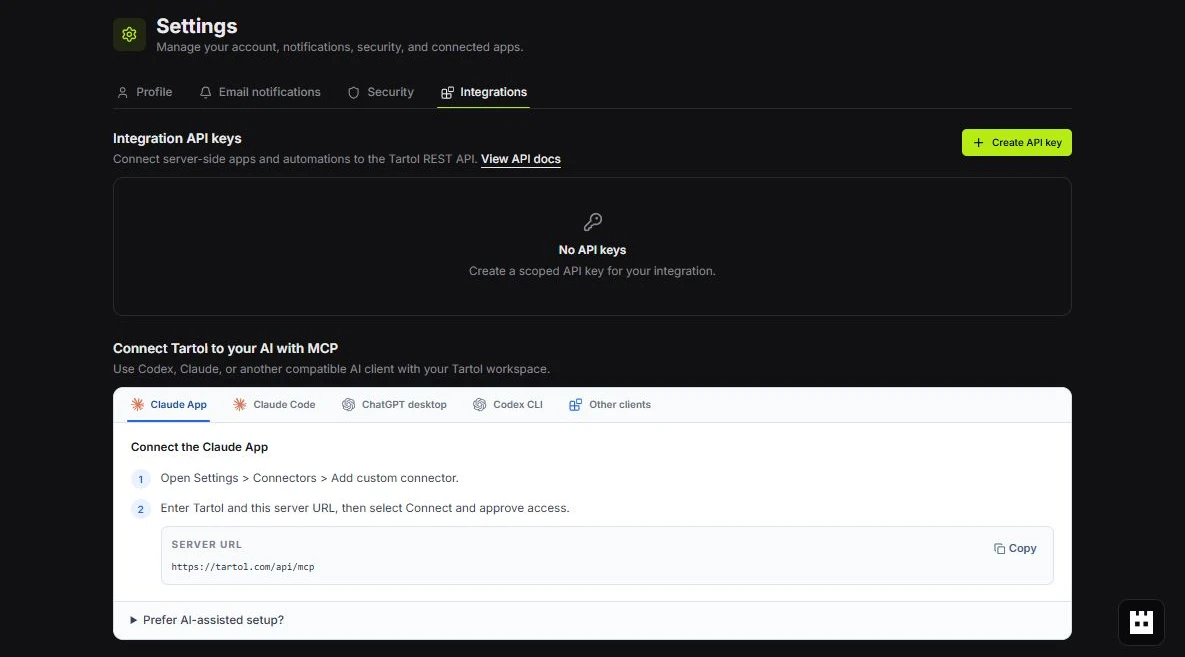 Copy exact URL
 - 2
Check the setup guide
Confirm the selected client supports the shown connection method and OAuth flow.
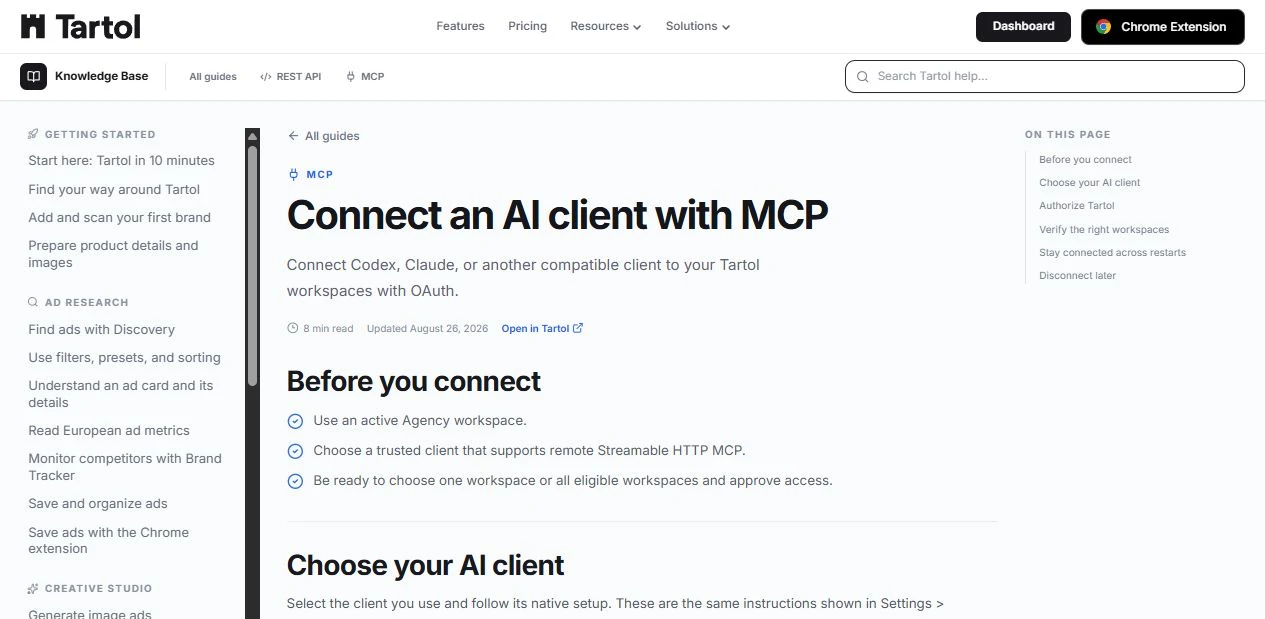 Before you connect
 - 3
Report a reproducible issue
If it still fails, open Support with the client name, time, safe error text, and attempted tool.
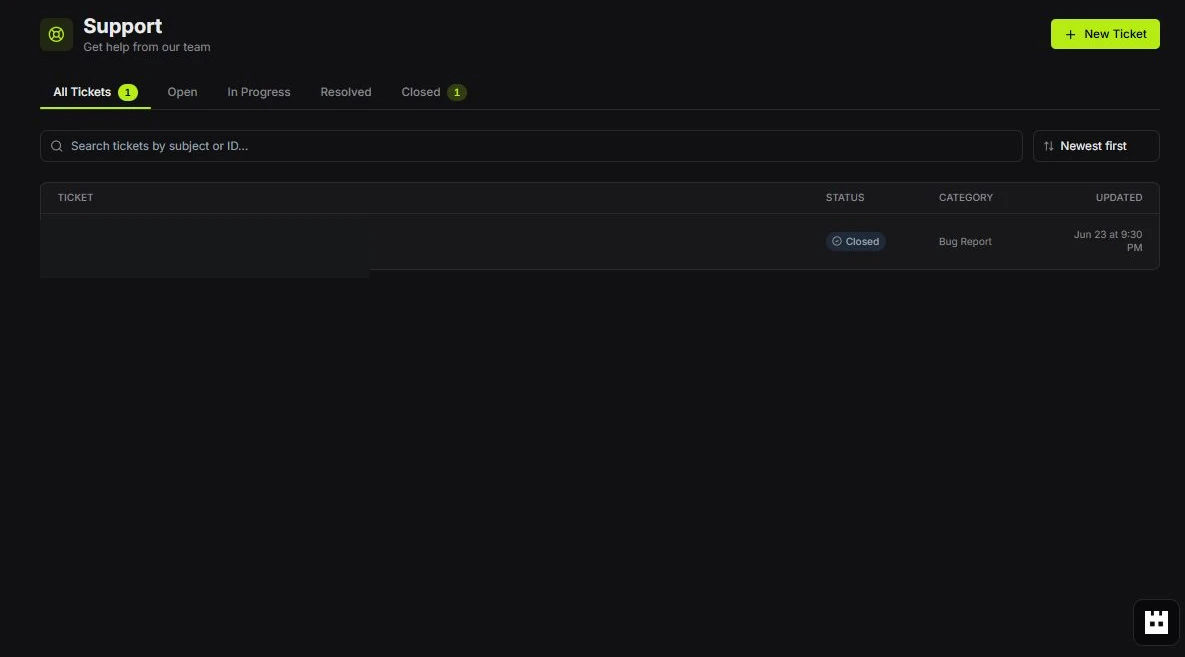 New Ticket
Red labels show the exact control to use.
Detailed referenceOpen this for definitions, limits, examples, and troubleshooting.
Fast diagnostic checklist
- 1Confirm the endpointUse https://tartol.com/api/mcp with a Streamable HTTP MCP client.
- 2Confirm the connectionReconnect OAuth and approve the requested workspace and permissions again.
- 3Call whoamiCheck workspace, role, method, and granted scopes.
- 4Call list_capabilities againDo not assume an older action list is still valid.
- 5Describe the actionUse the returned schema instead of guessing argument names.
Common error meanings
| Message or class | Likely fix |
|---|---|
| Authentication required / invalid token | Reconnect or replace the expired/revoked credential. |
| Insufficient scope | Grant the needed scope, keeping tartol:read included. |
| Plan access unavailable | Use an active Creator, Pro, or Agency workspace. |
| Permission denied | Use a role allowed to access the record or action. |
| Invalid arguments | Call describe_action and match its schema exactly. |
| Prepared action expired or changed | Prepare it again and obtain fresh approval. |
| Too many requests | Back off and retry; do not loop immediately. |
| Could not load API keys / MCP connections | Refresh Settings > Integrations once. If both panels still fail, report the time and workspace to support; existing credentials are not deleted by a loading error. |
What to include in a support report
- What you were trying to do.
- The time the error occurred.
- The client, workspace, and tool name.
- The error message, with credentials removed.