Search or browse all guides
Quick visual guide
Follow the numbered blocks on /creative-studio/images from top to bottom.
- 1
Select Product
Open your saved brand, then select the product you want to advertise. The next steps unlock once a product is selected.
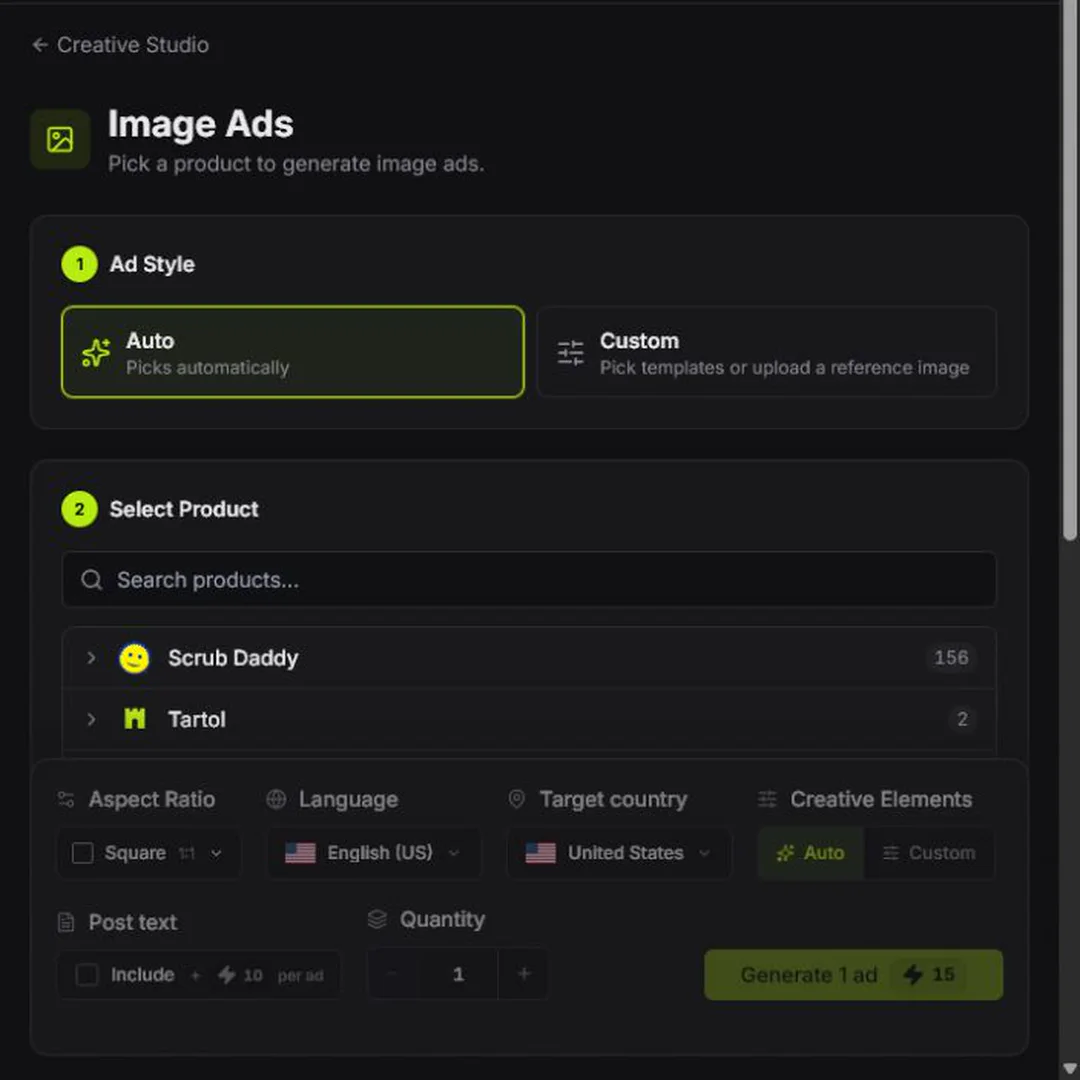 Pick the product
 - 2
Choose Reference
Choose Auto to let AI pick. Choose Custom to select Templates or Upload a reference image.
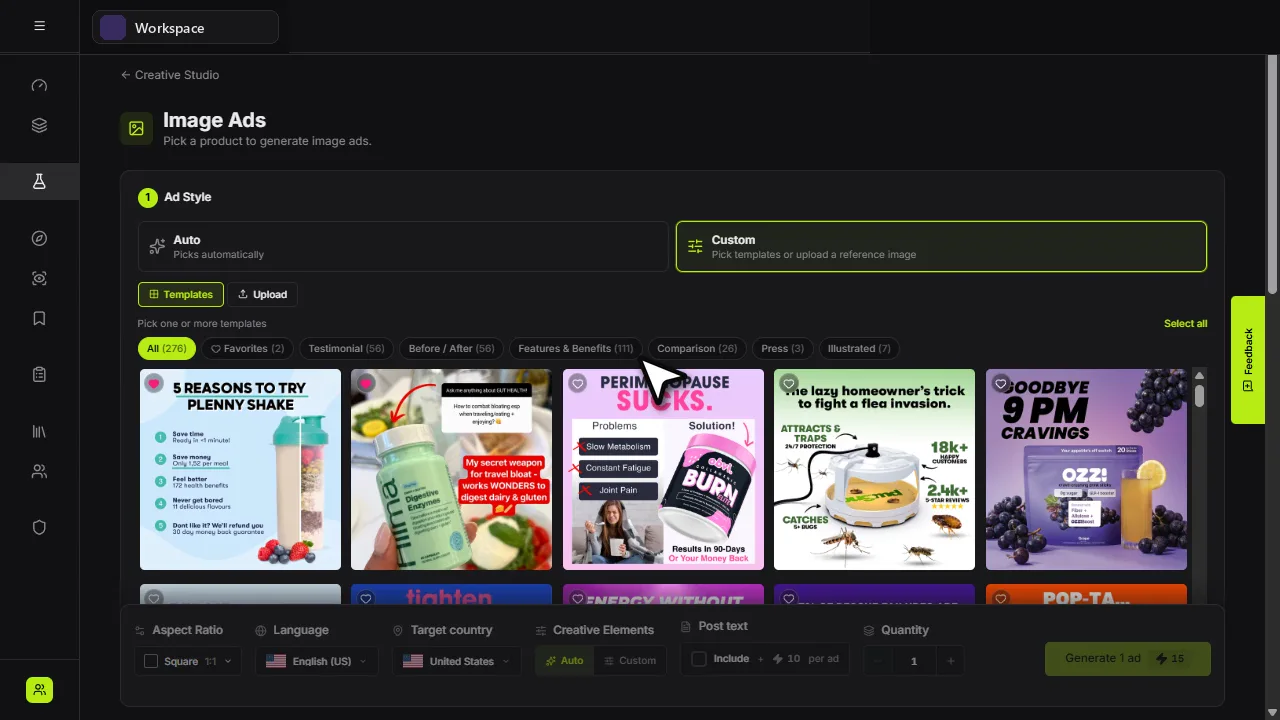 Auto or CustomTemplates or Upload
 - 3
Choose Customer Strategy
Choose Auto to have a customer strategy picked for you, or Custom to pick a strategy yourself.
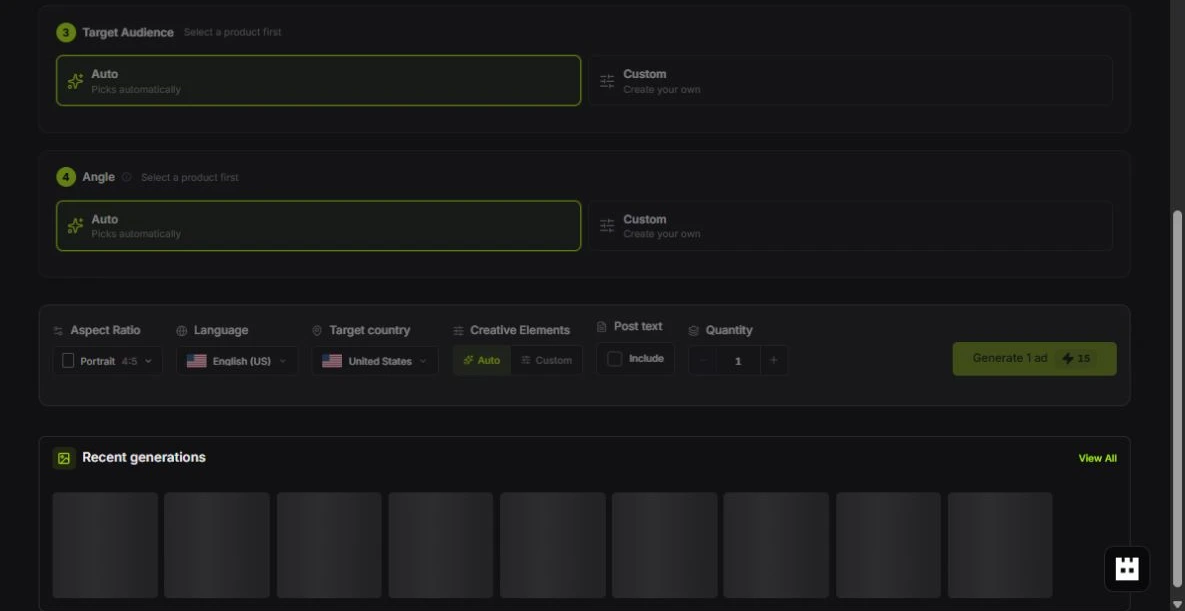 Auto or Custom
 - 4
Finish and Generate
Set aspect ratio, language, country, post text, and quantity. Review the credits, then choose Generate.
Review, then Generate
Red labels show the exact control to use.
Watch the full walkthrough
Detailed referenceOpen this for definitions, limits, examples, and troubleshooting.
What you need first
- A saved product with a clean name and useful description.
- At least one credible product image or a clear creative reference.
- Customer research for the product (Customer Strategy), cloned reference ads included.
- Enough available credits for the displayed number of outputs.
Generate step by step
- 11. Choose Reference AdChoose Auto to let Tartol pick automatically. Choose Custom to select Templates or Upload a reference image. When you clone an ad, it shows here first with its post text, headline and CTA.
- 22. Select ProductOpen the saved brand, then select the product you want to advertise.
- 33. Choose Customer StrategyKeep Auto to let Tartol pick an audience, awareness stage and customer truths from the product research, or choose Custom to pick them yourself. A cloned reference ad uses your customer research for the angle and copy, and copies the reference ad’s look for the image.
- 4Earlier workflowResearch system: Earlier workflow brings back the previous steps: Reference Ad, Product, Target Audience and Angle, each with Auto or Custom.
- 5Review the final barSet aspect ratio, language, target country, post text, and quantity. With Post text included, its options choose between cloning the reference ad's post text (rewritten for your product with the same structure, length and tone) and writing new post text with a style (Auto, Storytelling, Punchy or Explanation), a length, and an optional text to adapt. Post text uses the ad's language and target country. The Generate button shows the credit cost.
- 6GenerateChoose Generate. The job continues in the background and appears in Creative History.
Write better creative direction
Describe the desired outcome, hierarchy, and constraints. For example: “Create a clean 4:5 product ad for busy parents, lead with the two-minute setup benefit, keep the package readable, and use a calm kitchen setting.”
Auto casting uses the current product and brand audience research. In Image Ads, selecting a saved Custom audience applies its saved description and, when demographic evidence is concrete, its portrait to casting. Explicit audience ages override older saved age research, while mixed or unknown gender evidence stays neutral instead of guessing a woman or man. A pending or failed portrait never blocks generation: Tartol falls back to the canonical saved audience description and normal worker inference. Copywriter uses the same saved audience text to shape copy without visual casting. Versioned generation checks refresh older saved research before it is used.
When customer research is still running
Deep customer-voice research can take several minutes. Tartol follows the research provider until it reports a real success or failure instead of treating a still-running task as failed. A terminal callback preserves the same research run and resumes generation after a worker interruption, so check Creative History rather than starting a duplicate job.