Search or browse all guides
Quick visual guide
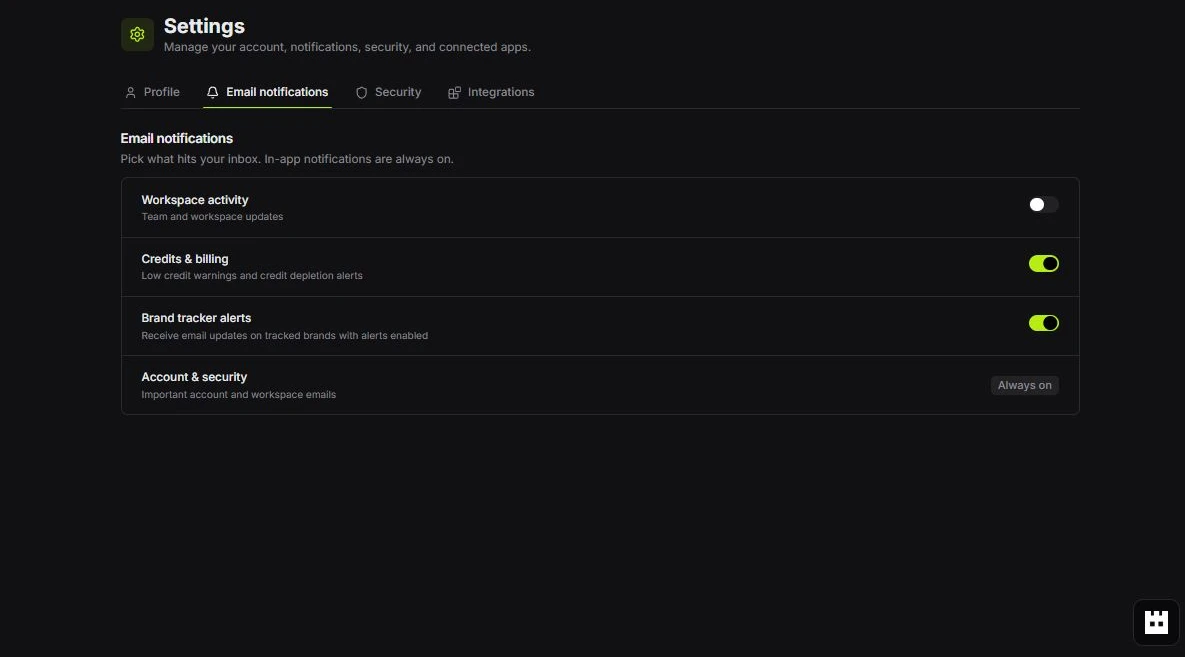
Choose which emails you want. In-app notifications remain on.
- 1
Open Email notifications
Go to Settings and choose Email notifications.
 Email notifications
 - 2
Set each category
Use the toggle beside Workspace activity, Credits & billing, or Brand tracker alerts.
Choose emails - 3
Leave security mail on
Account & security notices are always on so important messages are not missed.
Always on
Red labels show the exact control to use.
Detailed referenceOpen this for definitions, limits, examples, and troubleshooting.
Two kinds of notification controls
- Account notification preferences control the categories Tartol sends to you.
- Brand Tracker alerts control whether you receive new-ad updates for a specific tracked brand or folder.
Keep alerts useful
Enable alerts for brands you actively monitor and use folders for shared alert intent. If notifications become noisy, narrow the tracked set instead of ignoring everything.
New-ad emails show up to eight available creative previews. Tartol measures archived thumbnails during background media processing and groups matching aspect ratios into complete rows when possible, so large Brand Tracker imports keep the email grid aligned.
A provider-free recovery may finish an interrupted staged scan, but it cannot emit a current-day new-ad alert. Tartol ignores a staged recovery when a newer successful scan already supersedes it and preserves the original scan time in history.
If a notification is missing
Check your account preferences, the brand or folder alert toggle, spam filtering, and active workspace. Background collection can also delay a new-ad alert.