Search or browse all guides
Quick visual guide
Attach an image, describe one change, then review the result.
- 1
Add the image
Choose Upload, Media Library, or Products to attach the image you want to edit.
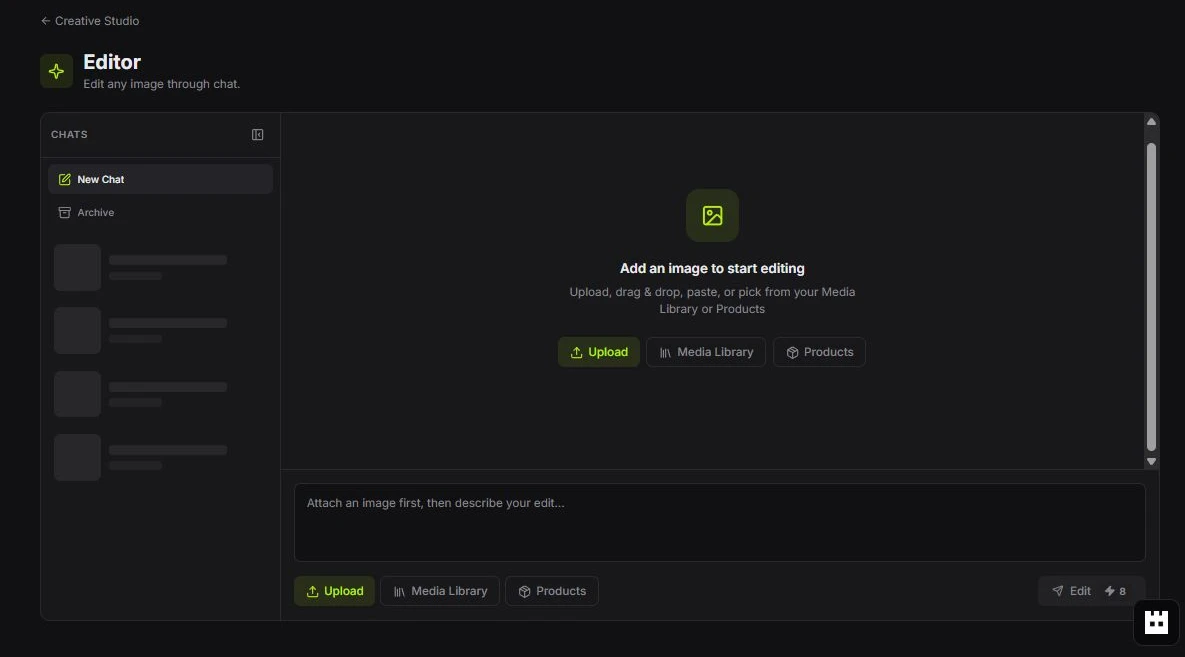 Choose a source
 - 2
Describe one change
Write the requested change in plain language, then review the displayed credit cost.
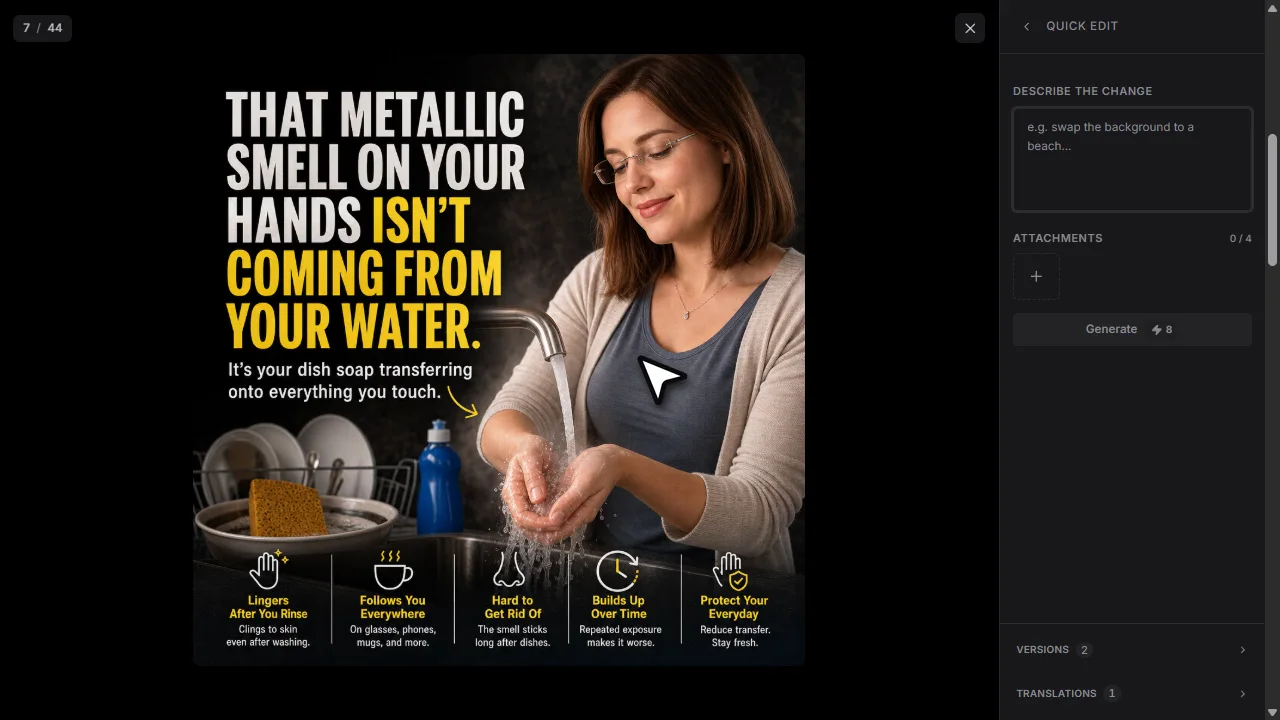 Describe the change
 - 3
Translate when needed
Open Translate, choose the target language, and confirm the translated result.
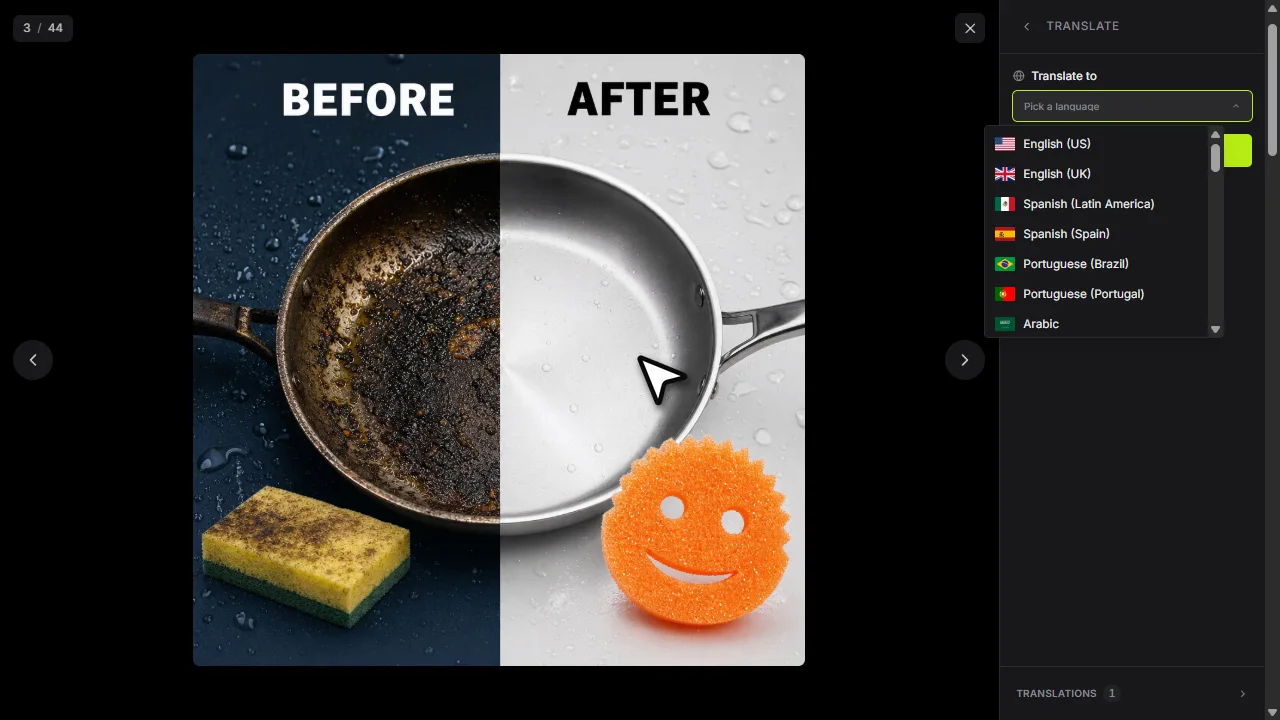 Pick a language
Red labels show the exact control to use.
Watch the full walkthrough
Detailed referenceOpen this for definitions, limits, examples, and troubleshooting.
Start an edit
- 1Open EditorChoose Editor, marked with a monochrome art palette icon, in Creative Studio or its sidebar submenu. Upload an image or send an existing Tartol creative into Editor.
- 2Describe one clear changeMention the exact object, text, color, location, or background to modify. Wait for every reference image to finish uploading. If an attachment fails, upload it again and retry; the edit does not start and credits are not charged until all attachments are stored.
- 3Review the credit confirmationEditing and translation spend the amount shown before execution.
- 4Continue the conversationRefine the latest result or return to an earlier version.
Translate text in a creative
Use the Translate action and select one of the supported languages. Check line breaks, product names, legal copy, and cultural fit before publishing. Translation preserves the visual when possible but may need a follow-up layout edit.
Examples of useful edit instructions
- Replace the blue background with warm off-white; keep the product and all text unchanged.
- Move the product lower so the headline has more breathing room.
- Remove the small badge in the top-right corner.
- Translate all ad copy to Portuguese; keep the brand and product names unchanged.