Search or browse all guides
Quick visual guide
Keep the product record clean before generating creative.
- 1
Open the brand
In Brands, open the row that contains the product you want to edit.
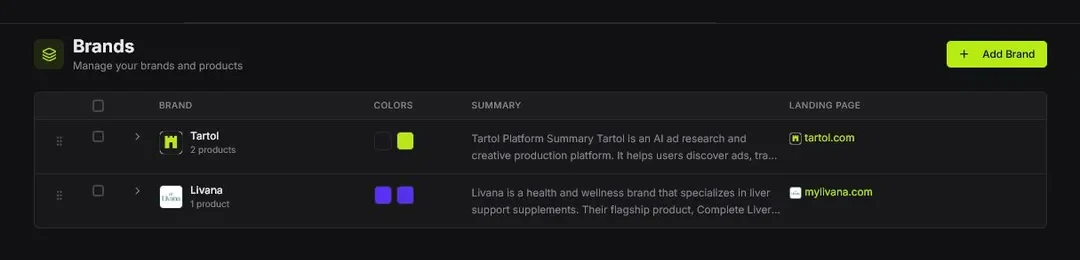 Open this row
 - 2
Check the core details
Confirm the product name, description, and strongest product images.
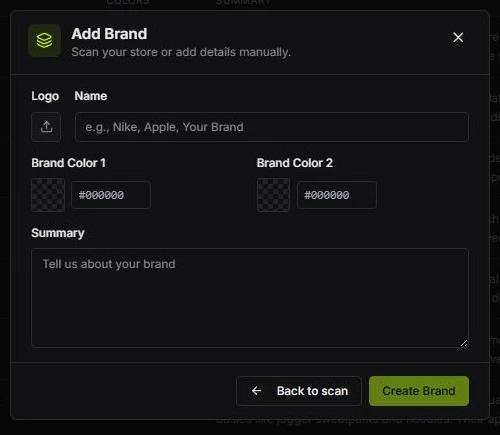 Keep details clear
 - 3
Verify it in Image Ads
The saved product should appear under Select Product before you begin generation.
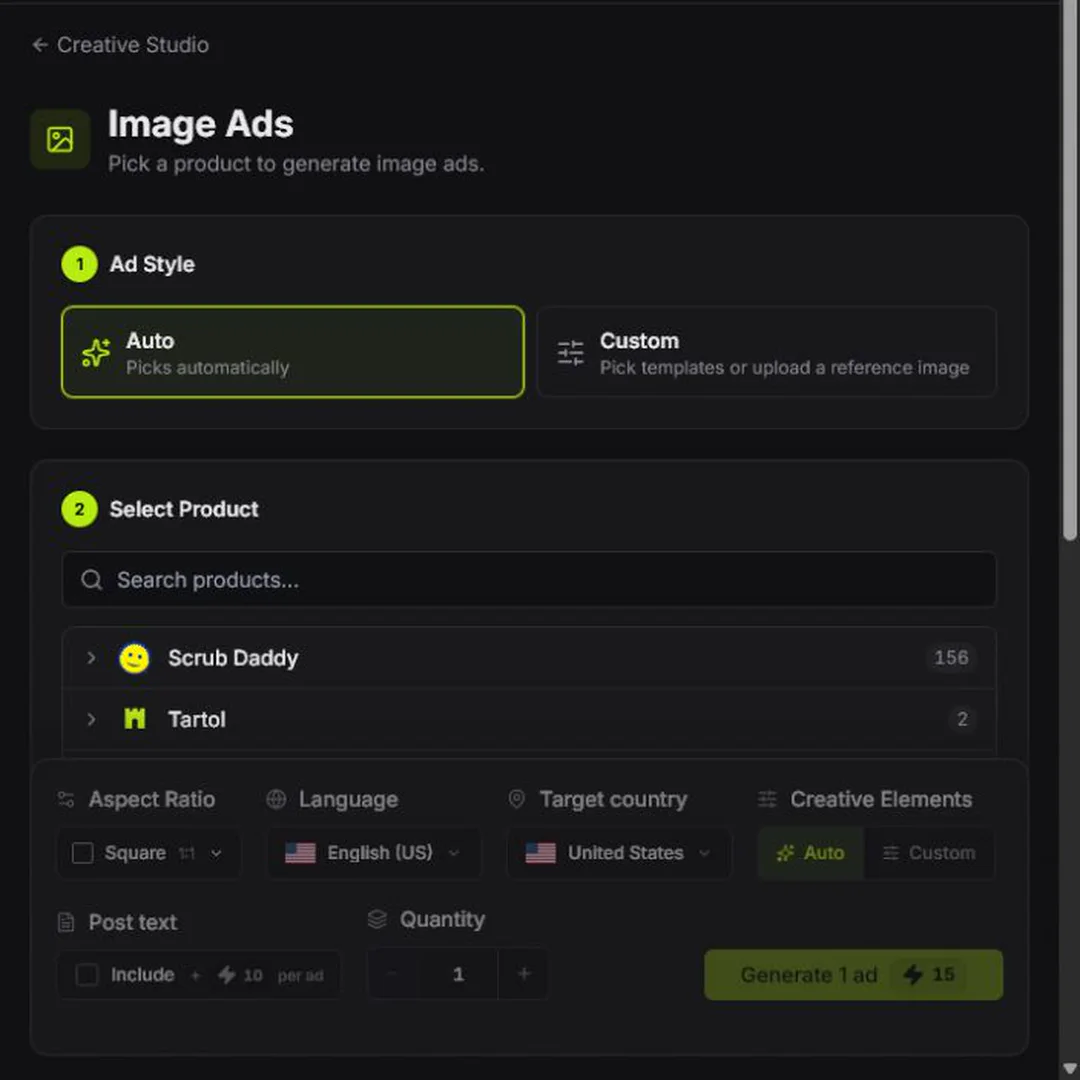 Select Product
Red labels show the exact control to use.
Detailed referenceOpen this for definitions, limits, examples, and troubleshooting.
Treat the product as your source of truth
Creative Studio uses the saved product information as context. Keep the name clean and specific, describe what the product does, choose the closest standardized product type, and select the actual pricing model. Price can be a compact range when one offer has several plans. Remove page-title phrases such as “Official Store,” “Verified,” shipping claims, or promotional suffixes.
Choose useful product images
- Lead with a clear product-only or product-in-use image.
- Keep different aspect ratios when they contain useful information; previews should fit the image instead of permanently cropping the source.
- Remove screenshots, logos, badges, or landing-page captures that are not actual product photography.
- Three images are helpful but not required. One strong image is better than three unrelated ones.
If a saved image does not load
Brands reuses saved logos and product photos in the catalog, image previews, and product editor. Temporary image-loading failures retry automatically. If an image remains unavailable, a brand initial or product-box icon appears instead of a broken image. Brand colors inferred from a logo use the same saved logo.
Reload the page to try again. You do not need to rescan a brand just to reload its images, and a missing visual does not by itself mean the scan failed or the product is unknown. If it persists, contact Support with the brand or product ID. Super Admin Brand Scanner and Tracked Brands use the same image handling; their Refresh controls reload records without starting a scan.
Add audience and angle context
An audience describes who the ad is for. A marketing angle describes why that person should care now. Save several focused options rather than one vague paragraph, then select the best combination during generation.
In both Image Ads and Copywriter, Add Audience and Add Angle open on the AI generator with a quantity of 1. Each generated audience or angle costs exactly 5 credits; the audience price includes its portrait with no separate image-generation fee. Choose Add manually to enter your own description without showing both forms at once, and use Back to generate to return.
View Customer Research
In Customer Research on Brands and in the Copywriter research view, choose the comment icon beside a research-backed desire, notion, objection, or other customer truth to View supporting comments. Research evidence shows every available contributing comment in full, highlights the exact saved supporting excerpt, and links to the original comment or discussion when a source URL was captured. Opening evidence does not select a truth, run AI, or spend credits. Back to research or Escape closes only the evidence modal and keeps your research selection. User added truths have no research-evidence icon. Inferred findings are labeled as interpretations, and missing comments or unmatched excerpts are disclosed instead of being reconstructed. These comments support the customer insight; they do not verify product performance or make the comment a testimonial.
Any signed-in workspace member can expand a brand and choose Research in the Customer Research column on any product row. While research runs, that button shows Researching with its percentage and the brand row shows the same status, even when the brand is collapsed or the page is refreshed; Research stopped means the run halted and can be retried from the research window. The button uses a flask icon. Creative Studio uses a simple square icon with a single sparkle in the sidebar and page header. It opens the same organized research view used by Copywriter, with awareness stages, target audiences, customer truths, and Customer language. On Brands, Close dismisses the modal without generating copy. Research progress, missing research, failures, and recovery options appear inside the modal. For an unresearched product, Brands opens the modal with Start research and waits for that click; opening the modal alone does not begin provider work. Starting full customer research costs 95 credits, shown on the button. A ready profile opens without rebuilding or another charge. Research again and a fresh Retry research cost 95 credits. Missing research also waits for an explicit Start research click in Copywriter; generation does not silently start a paid study.
The start screen says No customer research yet when there is no completed profile, including after an outdated failed attempt. Only a previously completed but outdated profile says Research needs an update. Its short description says Build your research from real conversations on Reddit as plain text on one line at desktop widths, and shows a lightning icon plus 50 on Start research. Retry research and Research again show the same price; an individual added-audience study remains 10 credits. An old provider error from an outdated profile is not shown on this start screen; a failure in a current attempt appears in its own retry state with a plain-language explanation.
Customer Research replaces the Intel column, its Product Intelligence modal, and the separate research icons. Landing-page Product Intelligence remains seller-page context, AI targeting is a separate classification, and Customer Profile contains customer-voice evidence. Public REST and MCP expose saved Customer Profile evidence through product_strategy and support Customer Profile copy generation; explicit research rebuilds and evidence mutations use the browser controls. Tartol Agent can explain where to find Customer Research and how to read it, but it cannot open, inspect, run, or mutate customer research.