Search or browse all guides
Quick visual guide
Use History to find, reopen, and keep finished work.
- 1
Choose a type
Use All, Image Ads, Copywriter, or Favorites to narrow the history list.
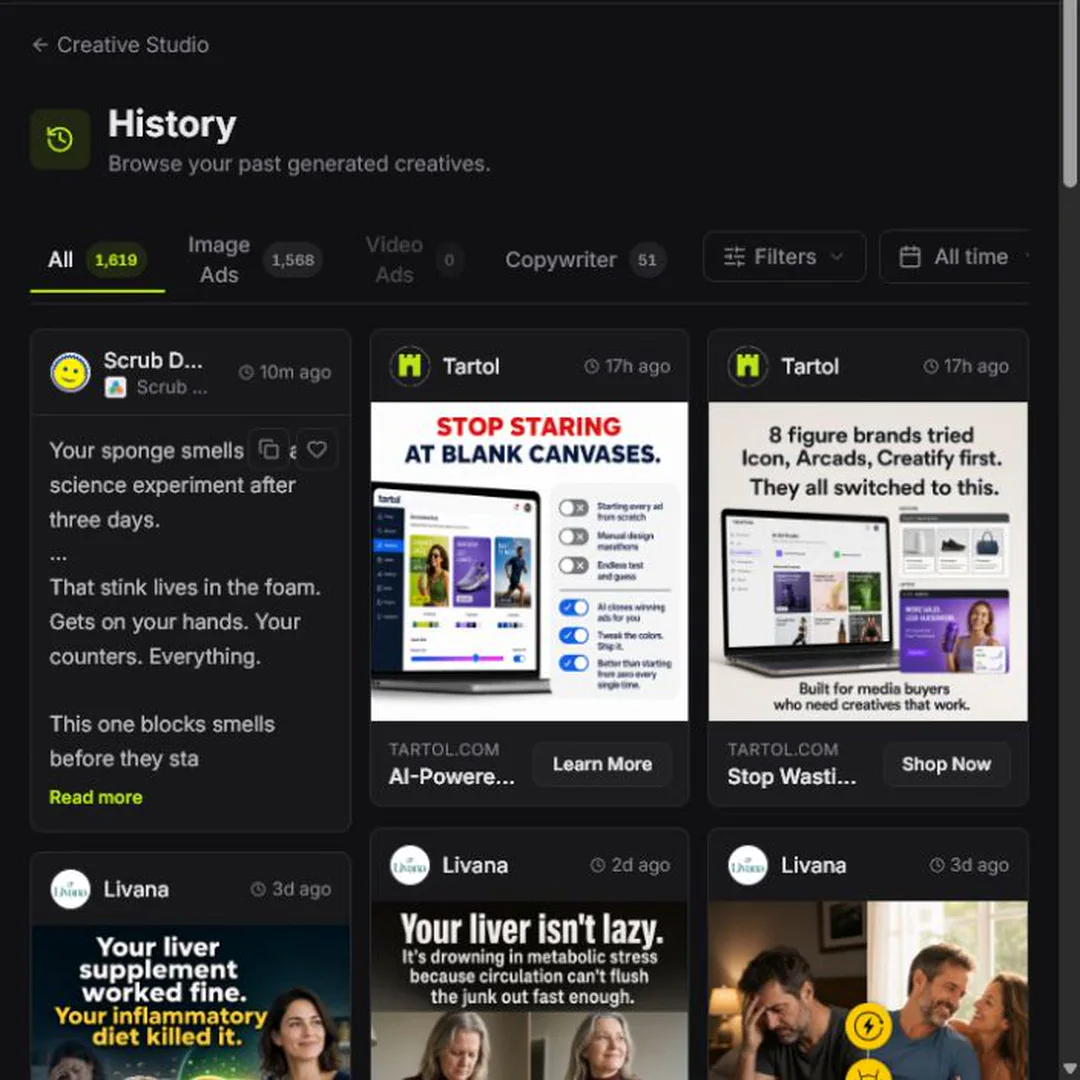 Choose a tab
 - 2
Filter the list
Use Filters and All time when the result is older or hard to find.
Filter - 3
Open a result
Select the creative card to preview it and use the available edit, copy, download, or favorite action.
Open a card
Red labels show the exact control to use.
Watch the full walkthrough
Detailed referenceOpen this for definitions, limits, examples, and troubleshooting.
Preview a complete generated ad
Dashboard > Recent generations opens the same image preview as Creative Studio, including Quick Edit, Translate, Generate Variants, Download, and Save ad. Select the creative on a generated ad card to open its ad preview with a compact two-line post. Read more inside the modal expands the text, and Show less collapses it. Read more controls on ad and copy previews use the same muted gray as Ad Discovery cards and brighten on hover. Choosing Read more on the card opens the modal with that post already expanded; the card stays compact. The modal matches other ad details, including the brand image in its header with no added padding, with the ad on the left and Details on the right. The generated ad Details sidebar omits the angle; saved angle information still supports post-text regeneration and variants. On smaller screens, details and actions sit below the ad inside the scrollable modal.
Hover over the post text to Copy ad text or Regenerate ad text. These controls also appear when focused with the keyboard and on touch screens. Copy uses the complete text even when collapsed. Regeneration uses 5 credits and updates the post, headline, and CTA in both the preview and its card when complete. The existing post stays readable while it runs; a failed request shows an error and preserves that post. The sidebar keeps Quick Edit, Translate, Generate Variants, Download, Save ad, favorites, versions, and translations where available. Choose Generate Variants to set the count, difference level, and optional ad post text, review the credit cost, and submit. The Ad variants window shows the source, progress, and results; generation remains visible in the tracker after closing it. Variants use 15 credits per image, plus 10 per image when post text is included, subject to the existing plan and workspace-member credit limits. Changing the main version or regenerating post text also updates the Dashboard preview when reopened. Versions and Translations start expanded in image and copy previews when available. Select either heading to collapse or reopen it. Scroll the thumbnail rows or use the left/right arrows beside each section title to see more items; the thumbnails have no edge fade. Previous and next arrows, or the Left and Right keys, switch ads instantly without animating the modal. Selecting another ad or version starts its post collapsed. Setup ads keep their existing access rules; locked actions direct you to the trial or plan prompt. Escape closes the preview. Reading and copying spend no credits. In the image preview the post text button reads Regenerate post text (Generate post text when the ad has none) beside its 5-credit cost. Hover over the image, focus it with the keyboard, or use a touch screen to see Regenerate image: it makes a new version of that image with the same angle, copy, format, product and reference, uses 15 credits like generating one image, shows its progress in the preview, and adds the result to Versions. It is offered only in your own workspace’s previews, not in Tartol Agent or read-only previews; public REST and MCP add no regenerate action. The ad card is as wide as its image, so square, portrait, story and landscape images show without bars beside them.
Modal layout, clipboard access, text expansion, and card navigation are browser presentation controls. The public REST API and MCP continue returning creative data and media and exposing supported creative actions through their existing workspace-scoped contracts; they do not open browser modals or access your clipboard. Existing action permissions, plan limits, connection scopes, and credit checks still apply. Variant generation continues to use the existing generate_creative_variations action for public REST API and MCP clients; the Dashboard entry point adds no new external action. Tartol Agent explains the preview and directs users to the available Creative Studio or MCP action.
Find the right result
Use the Image Ads and Copywriter tabs, filters, sorting, and display controls. Open a result to inspect its source context, variants, and available actions. Full-screen ad preview modals and Creative History card menus do not include Save to Media Library; use a generation result control where that action is available.
Delete something you generated
Open the ⋯ menu on an image ad or copy card and choose Delete, or use the trash button in its preview. The same Delete is on variant cards in the Ad variants window, on Dashboard > Recent generations previews, and on new results in Image Ads. Tartol asks you to confirm first, and deleting cannot be undone.
Deleting an image ad also deletes its edits and translations. Variants made from it stay as separate ads: they move to the nearest ad left in their family, or show as their own cards when nothing is left. In the preview, the small x on an edit or translation deletes just that version and anything made from it. Deleting copy also deletes its edits, translations and variants. Copies already saved to Saved Ads and ads launched on Meta are not affected. Viewers cannot delete, and read-only views have no Delete. Video ads can be deleted in Video Ads once they finish rendering.
While history is loading
Creative Studio and Creative History keep their loading placeholders while a history request is slow. Temporary connection problems and server timeouts retry automatically without a red timeout banner or a manual retry prompt. Only the interrupted read repeats; completed image or copy reads are retained. Loading another page keeps the creatives already on screen, and tab totals show a dash until their counts arrive.
Changing filters, accounts, or workspaces cancels obsolete reads. A confirmed access denial or invalid response can still require attention. Quiet history loading is a browser presentation-only exception: public REST and MCP retain their existing errors and access checks. Tartol Agent explains this loading behavior without adding an action tool.
Understand job status
| Status | What to do |
|---|---|
| Processing | Wait; the job is still running in the background. |
| Completed | Preview, download, edit, vary, translate, favorite, save, or delete. |
| Failed | Open the result for its message, correct the input, then retry once. |
Follow active generation while you navigate
The floating generation tracker keeps active work visible without requiring you to stay on the generation page. Its list is ordered with the most recently started generation at the top.
- Leaving the current dashboard page automatically collapses every expanded generation card into its compact chip; the work continues in the background.
- An animated spinner marks a job that is still working in both the expanded card and its compact chip. The compact progress badge continues to show the completed count, such as 0/3. Dragging a compact chip preserves its current thumbnail and status instead of replacing the chip with a full loading spinner.
- Select a compact chip to expand its details again. Older work that does not fit is summarized below the newest visible jobs.
Keep the useful work
Favorite strong creative, mark unhelpful outputs when available, save reusable images to Media Library from generation result controls where that action is shown, and move research-style references to Saved Ads boards. Ad preview modals do not include Save to Media Library. On a generated ad card, the three-dot action changes from Save ad to Remove from Saved Ads after saving; choosing it again removes the ad and returns the action to Save ad. Compact card previews collapse blank paragraph separators and cleanly clip after two lines before Read more, without inserting ellipsis text or exposing part of a third line.