Search or browse all guides
Quick visual guide
Give the Agent the page, goal, and exact visible message.
- 1
Name the page and goal
Ask one focused question, such as “On Image Ads, what do I choose in Step 1?”
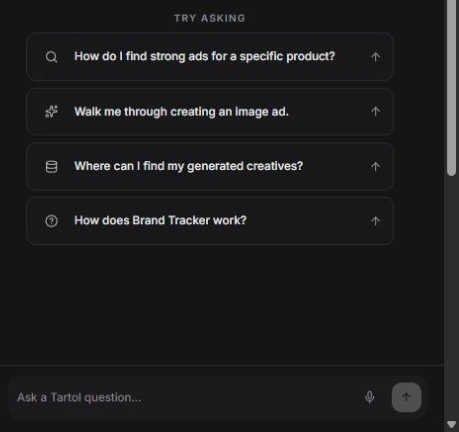 Be specific
 - 2
Start fresh if context drifts
Open a new Agent conversation when an old topic is steering the answer.
Start from a prompt - 3
Use Support for staff help
Open Support for billing, security, or another account issue that needs a person.
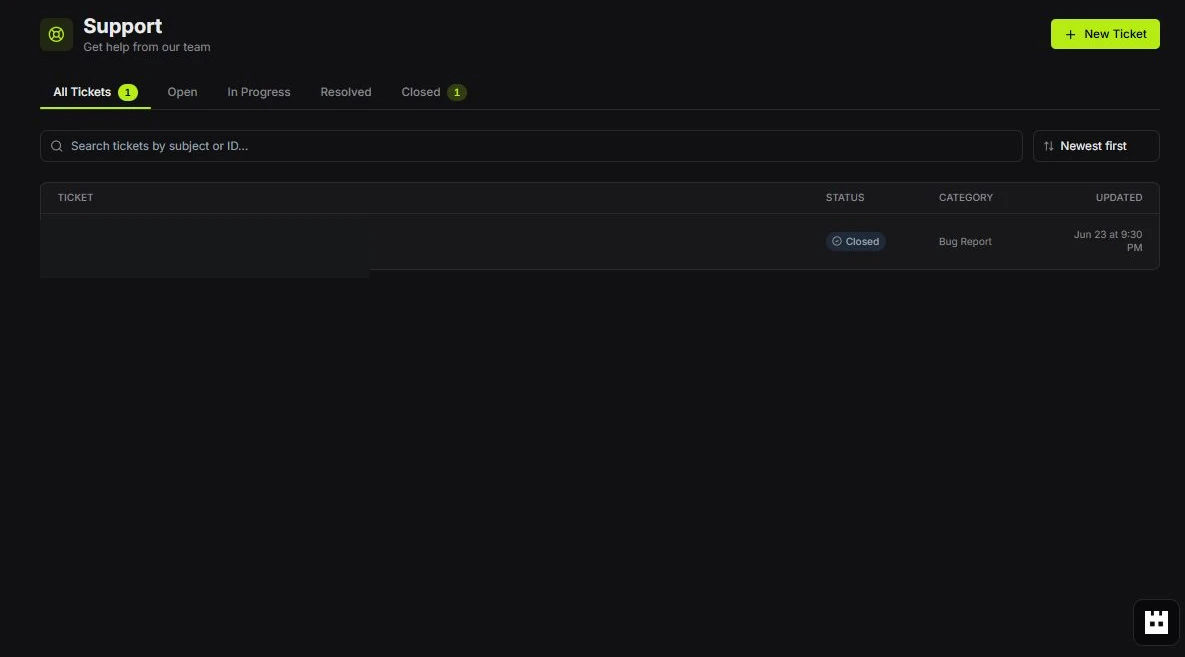 New Ticket
Red labels show the exact control to use.
Detailed referenceOpen this for definitions, limits, examples, and troubleshooting.
Common fixes
- 1Name the featureInclude the page or feature name and the outcome you are trying to understand.
- 2Quote the visible messagePaste the exact error text after removing credentials or private data so the Agent can match the right troubleshooting path.
- 3Confirm the workspaceIf the answer depends on account state, make sure the intended workspace is active.
- 4Check accessConfirm the active workspace role, plan, feature access, and available credits.
- 5Start a fresh conversationUse a new Agent chat when old context is steering a short follow-up incorrectly.
When the Agent says it cannot perform something
That is the expected guidance-only boundary. Ask for the exact in-app steps instead, or use a connected MCP client when the documented MCP capabilities support the action. Use /support only for issues that require Tartol staff.