Search or browse all guides
Quick visual guide
Start broad, inspect a promising ad, then save it.
- 1
Choose the view
Use All Ads for browsing or Product Match when you want results tied to a product.
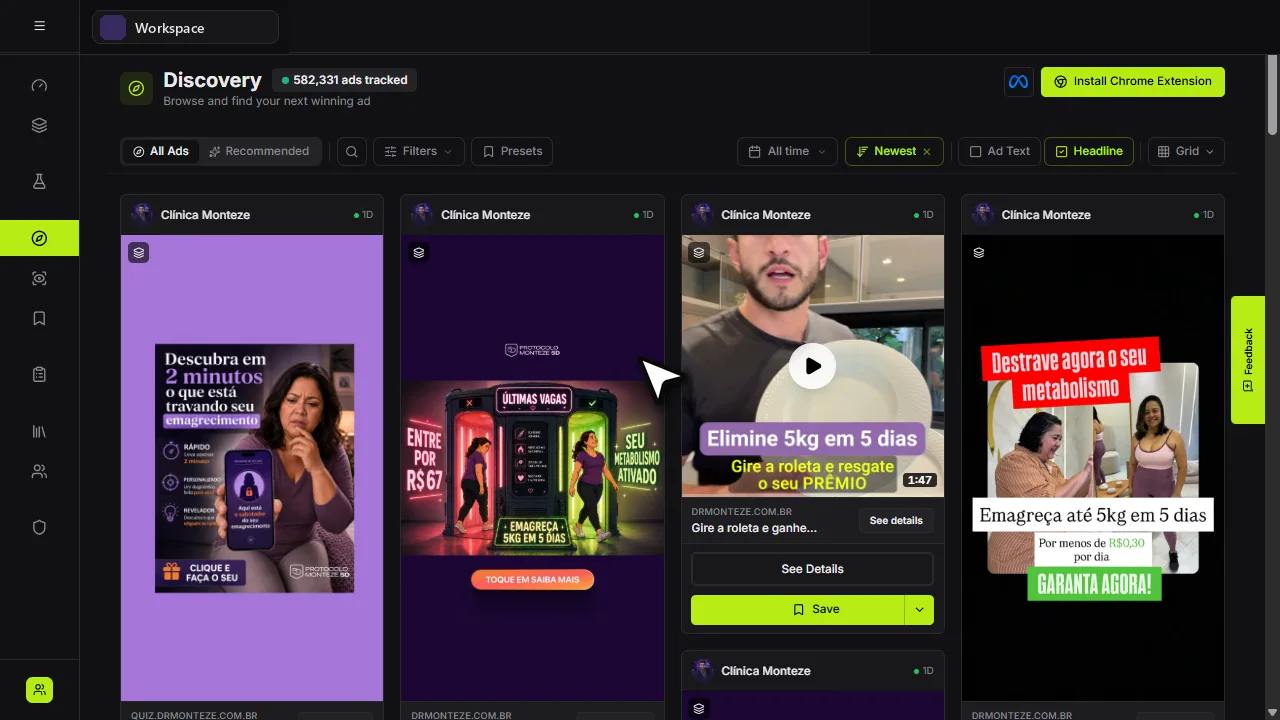 Pick a view
 - 2
Open one result
Select See Details on an ad to inspect its source, status, landing page, and targeting.
See Details - 3
Save useful ads
Choose Save on the ad card. Use its arrow when you need a specific destination.
Save
Red labels show the exact control to use.
Watch the full walkthrough
Detailed referenceOpen this for definitions, limits, examples, and troubleshooting.
Start broad, then narrow down
- 1Choose a viewAll Ads explores the library; Product Match uses one of your saved products as the starting point. The selected view has a highlighted background. Switching to Product Match with no product selected opens the product picker straight away, and the picker sizes itself to its content.
- 2Search or select a presetUse a brand, product, phrase, niche, or outcome. Quick presets apply a useful bundle of filters.
- 3Add only useful filtersStart with platform, format, niche, or running days. Too many strict filters can remove every result.
- 4Inspect and saveOpen See details for evidence, then save strong examples to a focused board.
Choose the right browsing view
| View | Best for |
|---|---|
| Grid | Comparing many ad cards and scanning visual patterns. |
| Feed | Reviewing one creative at a time with more context. |
| Swipe | Making quick save or skip decisions on mobile-style cards. |
Open links in ad post text
Tartol recognizes complete HTTP or HTTPS URLs, addresses beginning with www, and bare web domains in ad post text. It displays them in Meta-style blue and opens the selected destination in a new tab without opening the surrounding ad card. The same behavior applies across Discovery grid, feed, and swipe views, Brand Tracker, Saved Ads, shared and detail views, generated-ad cards, and ad previews. These destinations come from the advertiser's original or generated copy, so treat them as external sites. Public API and MCP responses continue to return the original post text as plain data rather than presentation HTML.
How Most Recent mixes brands
In All Ads, Most Recent keeps the newest ads first while preventing one recent Brand Tracker batch from filling the first screen. Discovery rotates advertiser families within the newest start date. If that date contains too few brands, it draws other advertisers from the next recent start dates within a seven-day window and mixes them into the opening results. Related Meta pages that send visitors to the same brand website, such as a main page and a Shop page, count as one brand family. Ads from the same advertiser family keep their own order. Filtering to one advertiser shows that advertiser alone, while Oldest and Longest Running continue to follow their selected ranking directly.
How Product Match uses landing pages
Product Match combines the selected catalog product's identity and product-image profile with products identified on analyzed landing pages. Strong identifiers, exact product-image bytes, and conservative visual similarity between exact product depictions can establish a match; every ad verified to share that landing page can then inherit the product match. A representative sales-video frame or landing-page context image can appear in the preview, but it is explicitly excluded from matching evidence. The optional Visual Match filter is stricter and separately requires a compatible product to be visible in each individual ad creative.
Promoted-product previews on ad cards
When Tartol identifies the promoted product, the landing-page row above the ad creative can show its verified product photos. The promoted-product hover preview shows the full product name on its own row, wrapping onto multiple lines even when only one image is available. Verification follows the primary offer and its purchase or join action; cart recommendations and publishers are not substitute products. Corrected identities clear unrelated prices and details, and different offers remain separate in the catalog. Hover the product to see its name and, when observed on the landing page, its price at the top right. Currency and billing terms such as $99/month are preserved. When an amount and its verified billing period are stored separately, the preview combines them; installment plans keep their stated payment terms. Missing prices stay blank. Embedded video-player or hosting brands are not accepted as the advertised product merely because they appear in page metadata. Product verification remains pending when a required provider is unavailable, out of credits, or returns an incomplete response; Tartol resumes it instead of showing a guessed name or price. If a newly discovered ad reuses an older cached landing page, including a public capture shared into Discovery, Tartol follows the exact capture attached to that card, treats its fresh verification as recent activity, and automatically upgrades outdated product intelligence once at the capture source instead of accidentally selecting an older copy of the same URL. Private saved-ad captures remain workspace-scoped, and old pages that have not appeared or been verified recently do not trigger surprise paid enrichment.
Read signals as evidence, not guarantees
Running days, countries, EU reach/spend ranges, page activity, and creative patterns can help prioritize ads. Ad cards across Discovery, Brand Tracker, Saved Ads, feed views, and shared libraries omit country badges to stay compact. A Countries row appears directly below Platforms in an ad Details sidebar when the provider supplied country-market data; otherwise the row is omitted. It shows the first three countries as small flag-only icons with instant full-name tooltips, plus a compact overflow count when more are available. Countries uses explicit advertiser targeting when Meta supplies it and otherwise falls back to Meta's combined target/reach market signal. Granular country-level delivery breakdowns never replace it. The same definition is used in filters, results, details, exports, API responses, and connected tools. Delivery breakdowns may still support separate European reach and spend metrics for confirmed EU-transparency ads. EU reach and spend stay in the Details sidebar, where Tartol can distinguish reported values from modeled estimates and explain them in context. These signals do not prove profitability. Compare several signals and validate the idea against your own product and market.