Search or browse all guides
Quick visual guide
Open Details, then read the fields from top to bottom.
- 1
Open Details
Select See Details on the ad card you want to inspect.
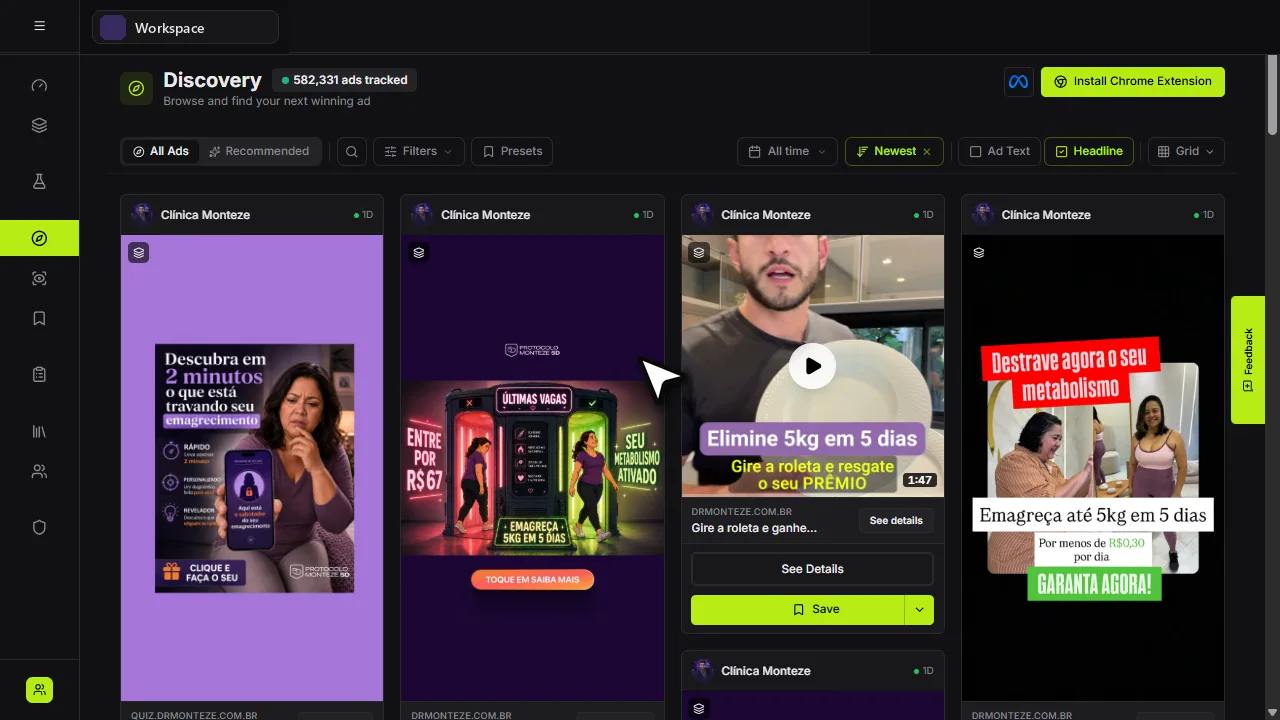 Open details
 - 2
Check source and status
The Details panel shows the brand, platforms, source, status, running dates, and format.
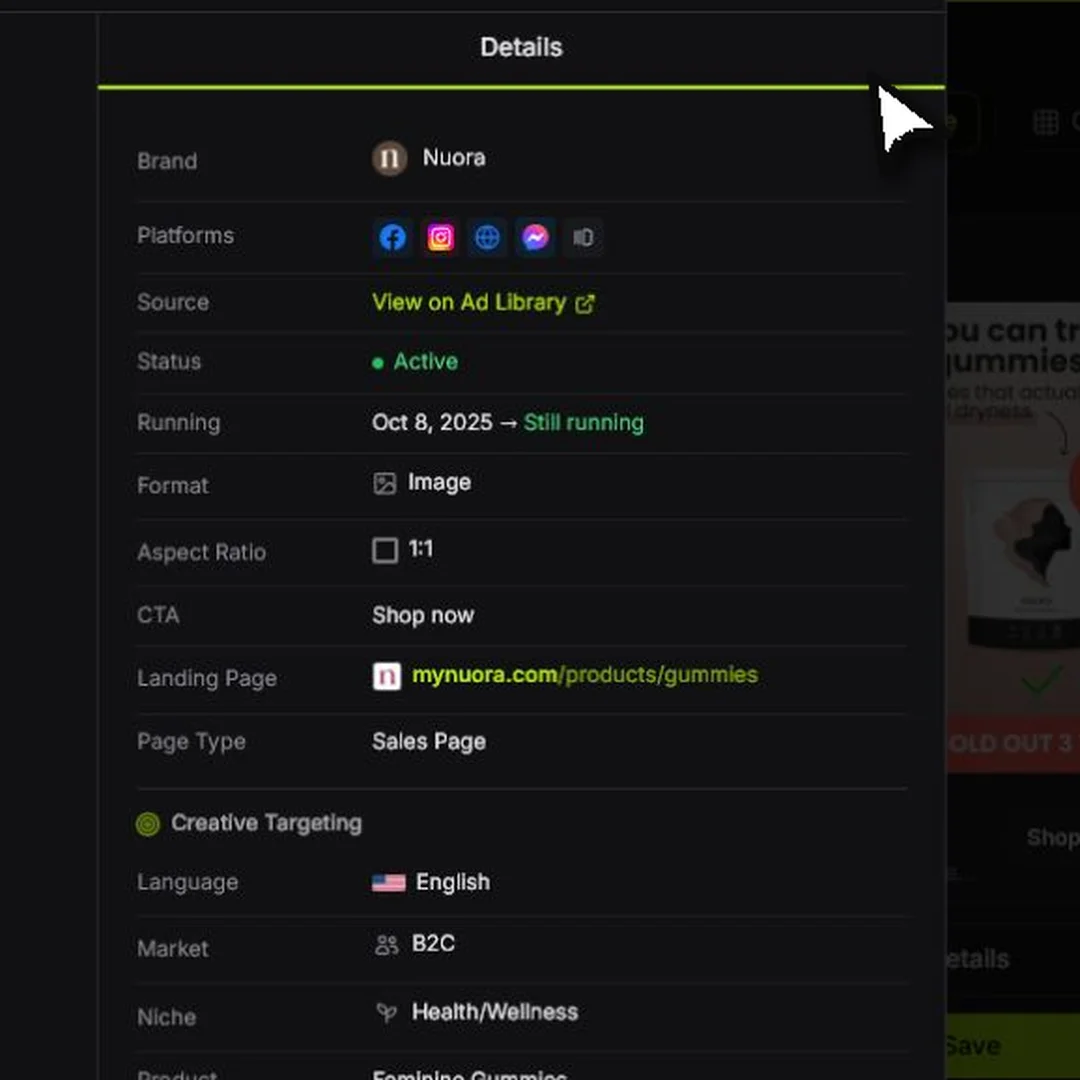 Start here
 - 3
Open the original source
Use View on Ad Library when you need to verify the live source page.
Open source
Red labels show the exact control to use.
Watch the full walkthrough
Detailed referenceOpen this for definitions, limits, examples, and troubleshooting.
What appears on the card
- Advertiser identity and observed running duration appear in the header.
- Advertiser-selected countries appear in the Countries row; EU reach/impressions and spend stay separately in the Details sidebar.
- Available Page Type appears with the initial ad details, using the saved landing-page classification. Discovery also resolves existing captures by landing-page URL when the ad has no linked capture. Loading screenshots, product previews, or the full transcript does not delay it. If no classification has been identified yet, the field stays hidden.
- The main area is the collected image or video creative. Videos preserve the complete source frame instead of cover-cropping it; black bars can appear when the source and card have different proportions.
- The Meta-style Headline strip below the creative includes the destination domain, ad headline, description, and CTA when available. The Headline visibility control hides or shows that complete strip as one unit; the separate landing-page URL and product-preview row remain visible.
- The landing-page row shows the destination with a separated square preview button at its right edge.
- A fixed product thumbnail or package icon stays visible at the right edge. Saved product details load automatically when the card approaches the viewport, without requiring you to hover the landing-page URL.
Read the full ad post
Ad cards show a compact two-line preview. Choose Read more on a card to open the ad details with the complete available post text expanded, including its paragraph breaks and links. If you open See details first, choose Read more above the creative to expand the post; Show less restores the compact preview. Long expanded posts can be scrolled inside the detail view.
Use the previous and next arrows to move between ads. The post text changes with the selected ad, and each newly selected post starts collapsed. Choose Read more again to read that ad in full. These controls work the same way in Discovery, Saved Ads, and Brand Tracker.
Text expansion and previous/next navigation are browser presentation controls. Public REST API and MCP clients receive the available post text as data and choose how to display it; they do not need a separate text-expansion action.
Product preview behavior
Hover the fixed-size product thumbnail to see the verified product name and up to three product images ranked by exact-product relevance and visual quality. Tartol checks the landing-page text and screenshot, retries unresolved visual identities against the extracted page text, and still runs that recovery when saved screenshots preserve meaningful page text or credible image candidates after an interrupted analysis. A page that is verified to contain no identifiable product reuses that result only while its text and image evidence remain unchanged. Tartol keeps established software and service names separate from campaign headlines, then assesses each image candidate from its own pixels with a high-accuracy visual model before ordering the gallery. The compact preview always shows available square product images first, even when another format has enough images to fill all three slots. Any remaining slots favor one consistent fallback aspect ratio; if formats still need to be mixed, the largest same-format groups stay together instead of alternating shapes. Within each format, verified opaque-background images appear before transparent cutouts, while square priority remains absolute. For software, services, courses, and other intangible products that have no standalone product photo, Tartol can instead select a tight, authentic crop of the product interface or deliverable from the landing-page screenshot, ad creative, or a full-resolution ad-video frame. When none exists, it can use one representative frame from the exact product's primary sales or demo video rather than leaving the preview empty. Each stored visual records whether it is an exact product depiction or only representative context, along with its source; representative context is never used as Product Match image evidence. These crops are taken from the real source media; Tartol does not generate substitute artwork.
- The Details sidebar includes a Product row immediately above Landing Page in Discovery, Saved Ads, and Brand Tracker. Hover the product thumbnail or name to open the same preview as the ad card, including the full verified name, available images, and verified price. You can also select or keyboard-focus the product to open it. Missing product details use the same loading and unavailable states as the card.
- A blank price means Tartol has no verified price for that capture, even if the page shows one. Verification keeps supply quantities, per-item prices, and subscription conditions together; daily cost estimates, savings, shipping thresholds, and free gifts are not purchase prices. If a visible price remains missing, contact Support with the ad ID or landing-page URL so the stored capture can be checked. Browsing the card does not repeatedly retry an unresolved price against unchanged evidence.
- A product image is shown only after the product name is verified. Until then, the thumbnail and hover panel show where the landing page scan stands, with a spinner: Waiting to scan the landing page…, Capturing the landing page…, or Identifying product… while the product is read; the card updates on its own when the scan finishes. Product not found appears only when the finished scan has no verified product, and Couldn’t read this landing page when the scan failed. When no product is identified but the page sells something, the box shows an Offer preview instead: one crop of the page’s first screens that best shows the offer, such as its hero or programme cards. Candidate images and prices stay hidden for unidentified products, and an Offer preview is page context only: it is never a product image and never participates in Product Match. These messages describe the current result; they are never saved as product names.
- A card without a linked capture can reuse already verified product details for its exact landing-page URL instead of an unverified cached copy. A card linked to a historical capture keeps that observation. Completed corrections refresh the name, price, and gallery together. Browsing old cards does not start a new paid scrape; contact Support with the ad ID if an older preview remains unavailable.
- The compact card thumbnail fills its square edge to edge without internal padding; wider or taller images are center-cropped so the square is always filled.
- For hosted communities, courses, memberships, and other intangible offers, Tartol can use a page-declared cover or hero when the verified offer identity matches the page and no exact product image survives verification. This rule is provider-independent, and representative covers never count as exact Product Match image evidence.
- For an identified product with no usable product or representative image, the thumbnail and hover gallery can show a labeled 1:1 crop from the top of the stored landing-page screenshot. Products without a verified name show their Offer preview when one exists, otherwise the product-box placeholder. This final screenshot crop is display-only: it is not public REST API or MCP product-image data and never participates in Product Match.
- Hover, select, or keyboard-focus the product placeholder to see its current status. Completed verification refreshes the name, price, and gallery together, replacing the placeholder only when the product has been identified.
Landing-page preview
Super Admin > System > Landing Pages has one Page retrieval view in Activity. The calendar defaults to This month. The four cards (Completed, Running, Waiting, Reused), average capture time, and proxy/direct/cache bytes include all retrievals started in the selected dates. Reused means saved results were returned without a new capture; it can overlap Completed and is excluded from average capture time. Running means retrieval or required product work is unfinished. Standalone page retrievals and brand screenshots finish at collection; an unused pending product-analysis field does not make them running. All, Attention, Waiting, Running, Completed, and Skipped filters plus page/brand/product search apply to the selected history; totals remain scoped to the dates. Previous and Next browse 50 rows at a time. Status pills use the same colors as Brand Tracker, including when unselected. Super Admin pages use the full available content width. Each Page cell shows the URL first, with a small brand avatar and name below it. Hover the URL for the same desktop/mobile screenshot popover used on ad cards; there is no separate Preview or Brand column. Select product images to open their saved gallery, the status for workflow details, and View in Content to read saved page text or discovered links. Duration covers the original landing-page job from creation through screenshots, saved content, product verification, price extraction, and image persistence, including queue and retry waits. Website scans and product research show their own original request-to-finish duration, including queue and retry waits; instant reuse can be 0.0s. Failed or skipped outcomes retain their elapsed time without being marked successful. Unfinished work shows In progress; Not recorded is reserved for missing timing evidence. Website scan and Product research identify non-ad requests beside their originating brand; these content-only jobs show Not requested for ad-product fields and do not request screenshots. Brand attribution comes from the original ad or validated scan/product origin, including guest-workspace transfers. Known website utility links, including Cloudflare email-protection URLs, are excluded from discovery; historical rejections appear as neutral Skipped, outside Attention and Completed. Real access-denied pages and provider interruptions remain visible. Delayed permanent screenshot publication stays attached to the original completed job; opening saved content reuses its existing receipt. Average capture is the separate browser-stage metric, which excludes downstream product work. These reads do not scrape or generate anything. Temporary receipts expire after seven days; permanent saved page results and completion totals remain available. Recent updates use relative time and older updates use calendar dates; hover for the exact timestamp. Product fields use the same verified saved results as ad cards; missing prices remain Not found. Traffic comes from collector records, excluding legacy capture mirrors. Capture settings retains Save changes and Discard, including concurrent-save conflict checks; Proxy pool links to Brand Tracker. Local and staging controls are read-only. This account-wide diagnostic and temporary receipts are intentionally excluded from public REST API and MCP. Existing authorized workspace-scoped screenshot and product results are unchanged. Tartol Agent explains the view without infrastructure actions or credential access.
Ad landing pages use Tartol’s in-house collector. Desktop and mobile screenshots, page text, metadata, links, and product evidence are collected together. Text capture preserves descriptions and offer copy alongside headings. Dedicated AI verification checks the promoted product; an unclear campaign title is not accepted as a product name. Captures and completed analysis are saved so temporary service interruptions resume the original job automatically. Matching recent URLs reuse saved work. Firecrawl credits are not used for this ad-capture flow; other research tools may still use their configured providers. Queue estimates depend on recent throughput and can increase for unavailable websites or delayed analysis. Social-network destinations are skipped, including Facebook’s fb.com and fb.me aliases; use the advertiser’s public external website for a landing-page preview.
On ad cards, the landing-page information appears in a compact 36-pixel strip directly below the ad copy and Read more control, before the creative. The strip uses a subtle tinted background, sits flush with the card sides and creative, and has top and bottom borders while preserving space above it. The site’s favicon (a globe when it has none) is a decorative website indicator. Hovering the link before its screenshot exists shows the capture status instead. Tartol loads saved landing-page and product-preview data automatically as a card approaches the viewport. Hover the URL itself to underline it, show the browser's native Landing page tooltip, and open the landing-page screenshot preview; selecting the URL opens the destination in a new tab. The underline and link target apply only to the URL text, not the surrounding row. The product-image preview on the right uses clearly rounded outer and image corners with a small inset. The page preview stays open while you move between the URL and preview in either direction, and closes after you leave both areas. When Tartol identifies a landing-page type, the Details sidebar and filter menus show it as a readable label such as Product Page or Sales Page rather than exposing its underscore-separated stored value.
Landing Pages keeps Duration as total elapsed time, including queue and retry waits. Page readiness and complex screenshots share the remaining capture-attempt budget instead of separate short cutoffs. Supported automatic browser verification requests stay in the original isolated session; forms and purchases remain blocked, and Tartol does not solve human CAPTCHAs. A verification error is never accepted as page content or reused as a completed capture. When time and traffic limits allow, the same operation can try one available backup connection before waiting to retry. A page that never exposes readable content remains unfinished. Once access succeeds, the original job reuses the real screenshots and completed analysis while finishing publication. A verified collection or informational page can finish without a single promoted product; that empty result is preserved with its saved page evidence. Certificate-validation failures are reported separately and never disable secure connection checks. Temporary rendering failures keep the original job and saved screenshots, retry automatically with increasing delays, and resume missing work. Access-denied pages keep their slower retry policy. A long duration can include earlier unsuccessful attempts; it does not mean the browser was continuously capturing for that entire time. You do not need to submit the page again.
A capture interruption and a low ad-enrichment percentage can have different causes. Page readiness and secure-connection errors concern the destination page; enrichment can be delayed by queued media, transcription, or analysis work. A website verification error remains unfinished even when the error screen contains readable text. Check the original job and the current queue state before starting another import. An earlier blocking alert can outlive the website block while saved results are being published; the current job status identifies the remaining step.
After a landing page is saved, linking its screenshot and product results to eligible ads can finish in background batches. A linking retry reuses the saved capture; it does not start another screenshot or product extraction. Shared previews prefer complete intelligence, then the newest capture. Repeated refreshes are not needed to finish linking.
A full-page screenshot waits briefly before its first automatic pan. Hovering the screenshot pauses it at the current position; moving the pointer off the screenshot resumes the pan on the next animation frame without replaying the opening delay. The intentional pause when a capture reaches the bottom remains part of the normal loop.
Video transcripts and hooks
Tartol automatically transcribes audio and keeps word timings so video hooks can be reviewed in context. It first uses Gemini to classify each unique audio track. Clear ordinary dialogue can use speaker detection, including dialogue over instrumental background music; when multiple speakers are detected, their saved turns can be labeled Speaker 1, Speaker 2, and so on in the transcript, playback captions, exports, Tartol Agent, MCP, and clone flow. Single-speaker transcripts stay unlabeled. In the Transcript tab, speaker badges are hidden by default. Check Speakers beside Copy, Download, and Clone Transcript to display them when multiple speakers were detected. The checkbox and label share a button background and are hidden when speaker labels are unavailable. The tab waits for saved word timings to load before showing timestamped rows; ads without timings display their transcript text. This checkbox controls speaker labels in the transcript view and in copied and downloaded text, for both With timestamps and Text only. Unchecked exports contain no speaker labels; checked exports include them. It does not change saved transcript data, playback captions, or clone input. Audio containing sung vocals, including a vocal song behind speech, is still transcribed but does not receive speaker labels because pitch and harmony can create false identities. Tartol stores whether music, background music, a background song with vocals, sung vocals, and spoken voice were detected, plus whether speaker detection ran. The original transcript text remains unchanged and any speaker identity is stored separately with the timed words. Exact duplicate audio reuses its saved Gemini classification and transcript instead of purchasing those steps again. Language detection normally follows the audio. When it returns a non-Latin transcript that conflicts with strong English ad context, Tartol verifies the audio with an English-specific pass and uses that result only when it produces a coherent timed English transcript. Genuine non-English audio is kept in its spoken language.
Open in Meta Ads Library
The labeled Meta Ads Library action opens the source record when Tartol has a valid source link. Meta may change, archive, or restrict the record after Tartol collected it.