Search or browse all guides
Quick visual guide
Install once, then save directly from Meta Ads Library.
- 1
Install the extension
Open the Chrome Extension page and choose Add to Chrome.
 Add to Chrome
 - 2
Open Meta Ads Library
Browse the advertiser or keyword you want on Meta Ads Library.
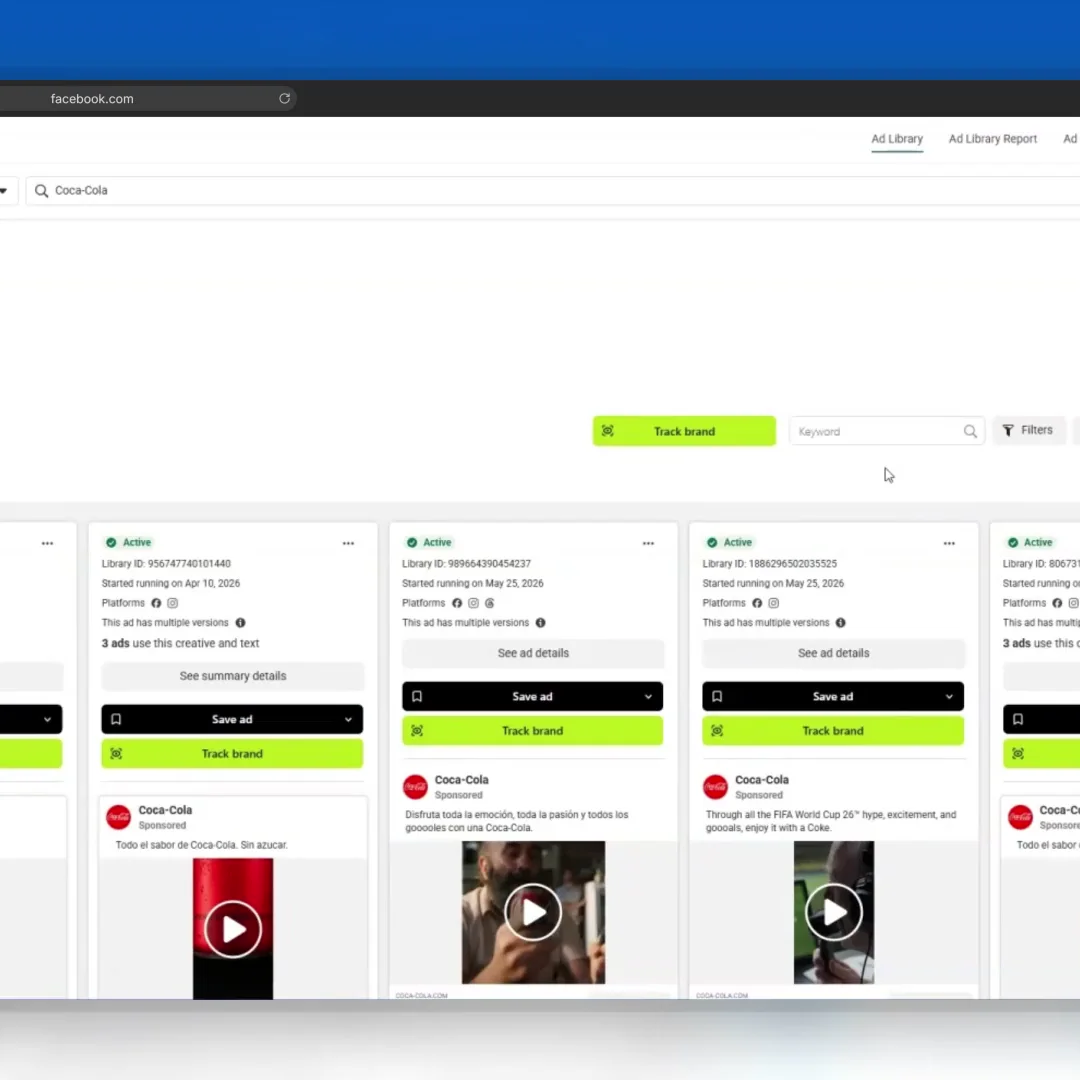 Browse ads
 - 3
Save the ad
Use the Tartol Save ad control on the Meta ad card, then find it in Saved Ads.
Save ad
Red labels show the exact control to use.
Watch the full walkthrough
Detailed referenceOpen this for definitions, limits, examples, and troubleshooting.
Install and connect
- 1Open the Chrome extension pageUse the extension link in Tartol or the public extension page.
- 2Install from the official listingAvoid similarly named third-party extensions.
- 3Sign in to TartolUse the same account and select the intended workspace.
- 4Save a supported adChoose the board when prompted, then verify it in Saved Ads.
If capture does not work
- Reload the source page after installing or updating the extension.
- Check that you are signed in and using the intended workspace.
- Your Tartol account must be active and your email verified. The extension cannot receive a session token for a deactivated or deleted account. The browser login handoff must be started from the extension.
- Confirm the source page and ad format are supported.
- Open the extension again and retry before creating duplicate saves.