Search or browse all guides
Quick visual guide
Open the library from a visible Media Library button, then search or organize.
- 1
Open Media Library
In Editor, choose Media Library beside Upload and Products.
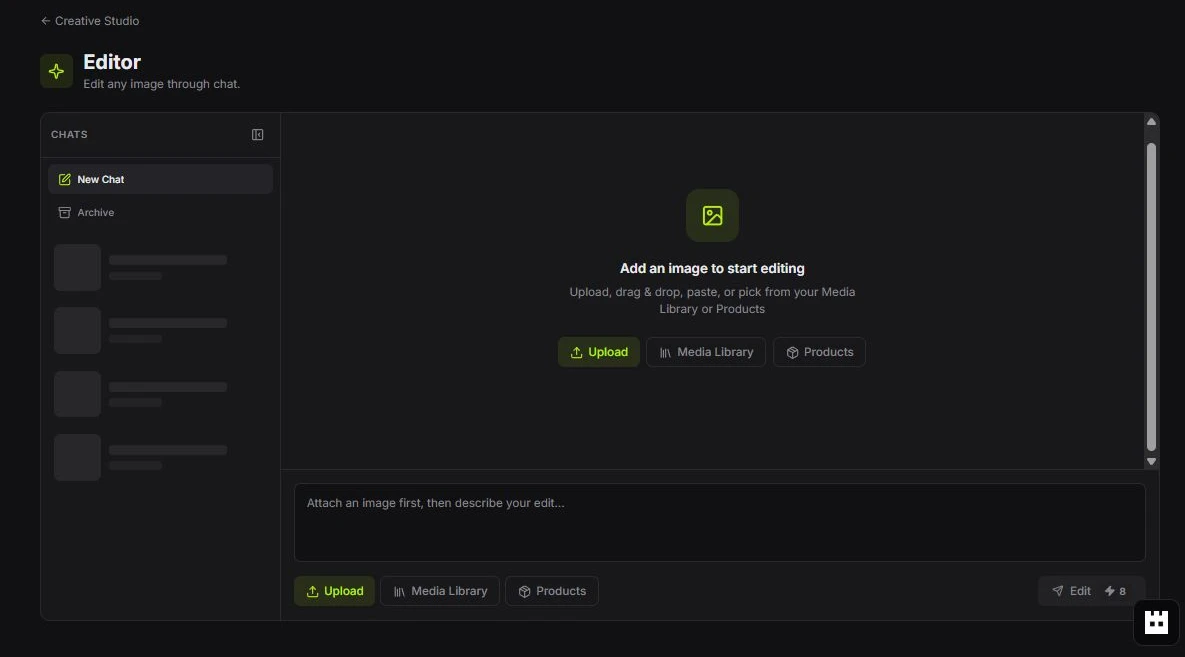 Media Library
 - 2
Search or change the view
Use Search media, sorting, and the grid/list controls at the top.
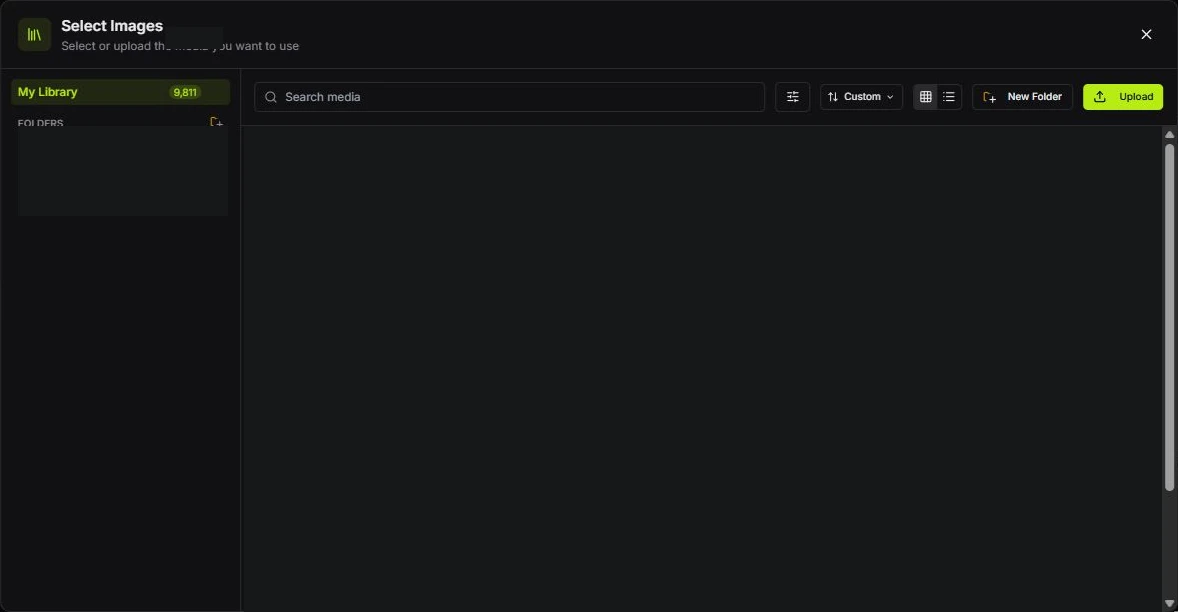 Search and view
 - 3
Create or upload
Choose New Folder to organize assets or Upload to add a file.
New Folder or Upload
Red labels show the exact control to use.
Detailed referenceOpen this for definitions, limits, examples, and troubleshooting.
Open and browse the library
Open Media Library from the Ads Manager submenu. It appears as a modal over the current page, where you can search by asset name, browse folders, preview files, upload assets, and select media for supported creative workflows.
A practical folder system
- Brand / Product photography
- Brand / Logos and identity
- Brand / Approved ads
- Brand / UGC and lifestyle
- Shared / Backgrounds and reusable elements
Move versus delete
Moving an asset keeps it available in a different folder. Moving it to trash removes it from normal browsing. Deleting a non-system folder moves its contents back to the library root instead of silently destroying every file.