Search or browse all guides
Quick visual guide
Use one filter group at a time until the result set is useful.
- 1
Open Filters
Choose Filters, then select the exact category you want to narrow.
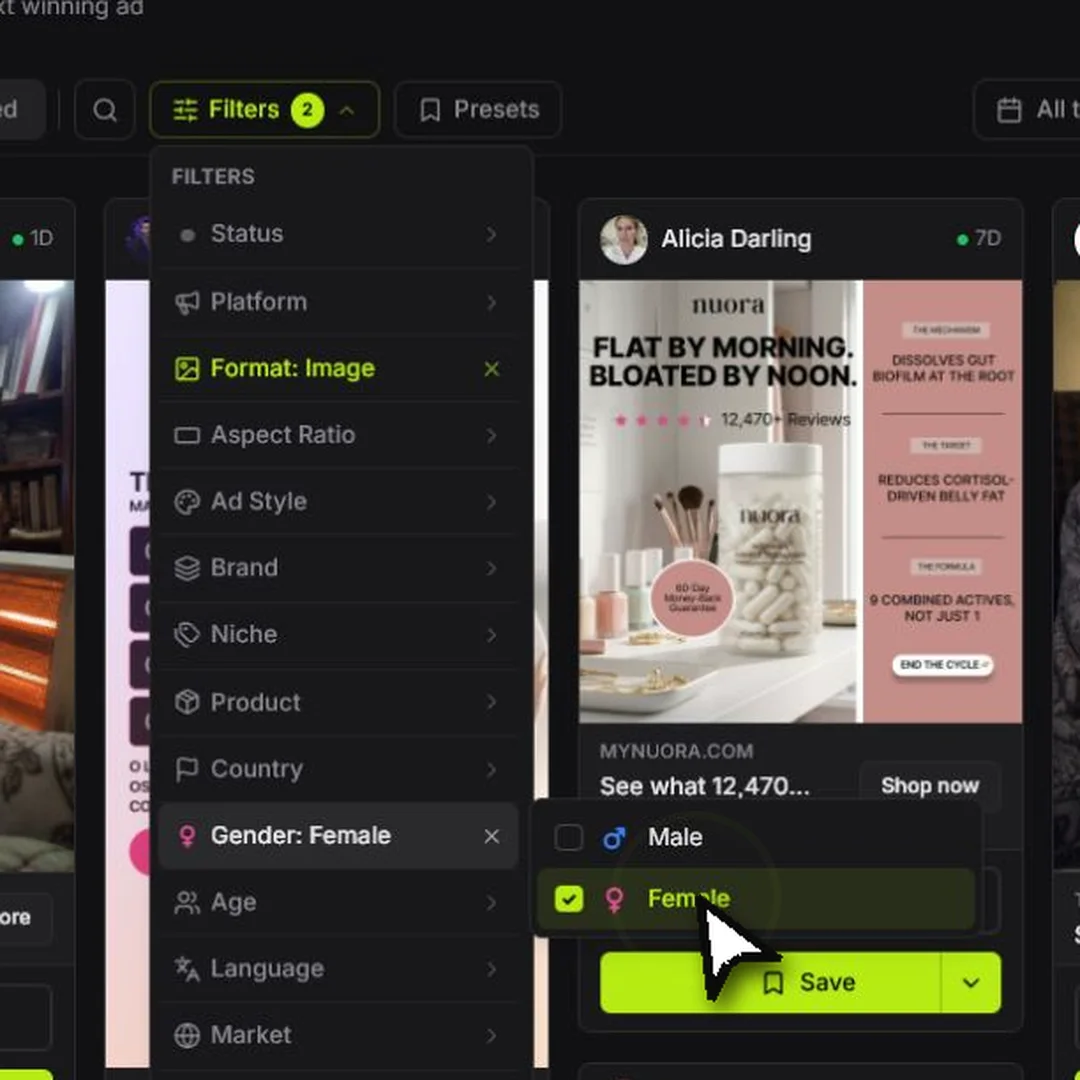 Choose a filter
 - 2
Pick a date and sort
Use All time when results feel too narrow, then choose the sort that matches your goal.
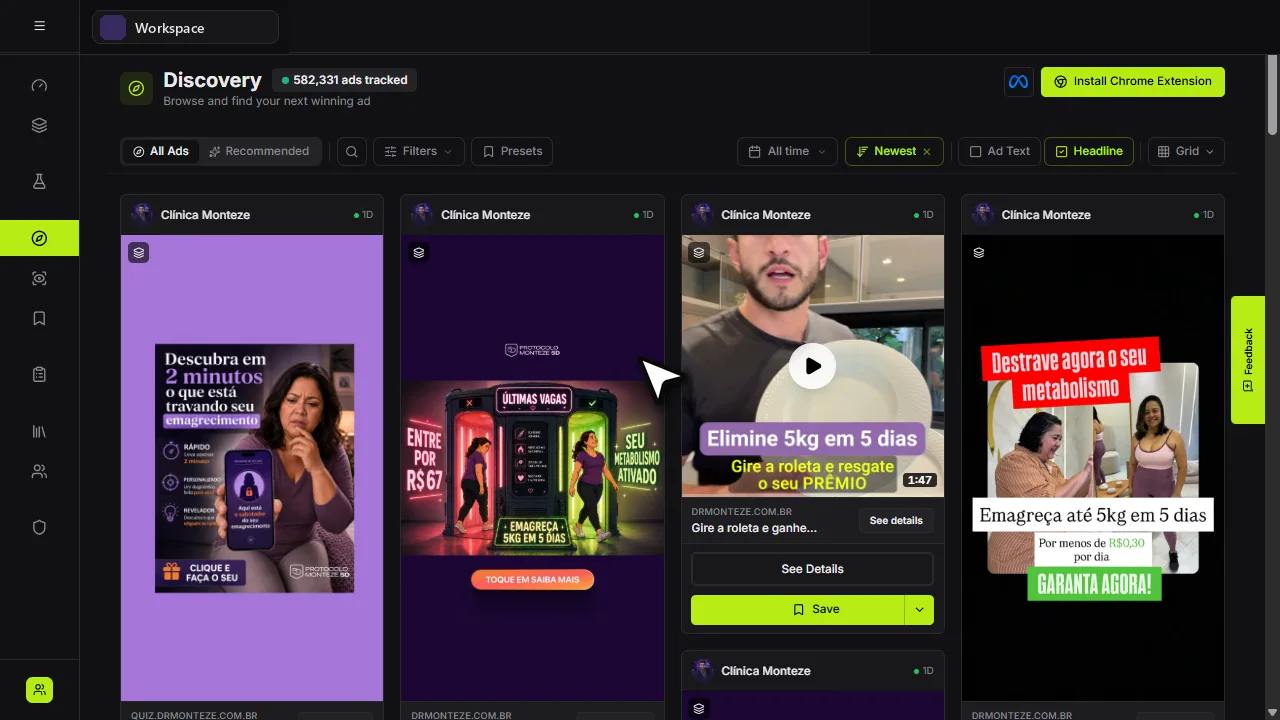 Date and sort
 - 3
Remove a narrow choice
Select the small x beside an active filter to remove only that choice.
Remove one
Red labels show the exact control to use.
Watch the full walkthrough
Detailed referenceOpen this for definitions, limits, examples, and troubleshooting.
Presets are a starting point
A preset applies several filters together. Discovery, Saved Ads, and Brand Tracker keep Presets in the Filters menu because selecting one changes the whole search recipe. Hover Presets or an individual filter to open its submenu; opening another item replaces the current submenu. The submenu stays put while options load or while you move the pointer into it, and closes when you click outside the filter area. Scrolling a long option list keeps the Filters menu open. You can still add, remove, or adjust filters afterward. These ad-library toolbars share the same compact filter rows, date and sort controls, card-visibility menu, and view selector; Creative Studio ad grids use the same card-visibility menu.
Read the active filter count
Before starting a free trial, Discovery provides an unfiltered ad preview. Filters, date ranges, saved presets, quick presets, and filtering from ad details require a trial or active plan. You can open and browse Filters and the date picker before starting a trial. Selecting a filter value, changing a range, or applying a preset shows a notification to start your free trial without applying the change. Filtered Discovery requests also return TRIAL_REQUIRED until the trial starts. Public REST API and MCP retain their existing active-plan requirements; their access is not unlocked by this browser preview. The Discovery Filters badge counts active visible filter categories. Native Ads automatically selects images without visible text; this preset condition has no separate menu row and does not increase the badge. The quick-preset row offers Native Ads and Ready to Scale. To limit results to European transparency ads, select EU only in Filters; its row and checkbox turn lime when selected. Active menu rows are highlighted so you can inspect or remove each visible condition. The menu’s Clear action also removes the hidden Native Ads condition. A selected date range contributes to the badge and is shown in the separate date control on the toolbar.
Understand each sort
| Sort | What it does |
|---|---|
| Most Recent | Shows newly collected ads first. This is the normal default. |
| Oldest | Shows the earliest available ads first. |
| Longest Running | Prioritizes ads with the longest observed run duration. |
Filter by product price in USD
Ad product prices are AI-verified against the saved landing-page text as one unit amount. Prefer the single item; when only bundles are sold, use the unit price of the smallest supported bundle. Promotion names, ranges and bundle descriptions stay out of the price. Supply length is not a subscription. A verified recurring price shows its actual cadence, such as /month; an unclear cadence has no suffix. Installment-only offers show the full committed total, never a monthly subscription. Unsupported or conflicting prices remain unavailable. This price check reuses the saved capture and product gallery; provider interruptions keep the original job unfinished and retry missing work. Discovery previews, Super Admin Landing Pages, authorized public REST ad results and MCP ad results share this display contract. The manually editable Brands catalog retains its separate pricing-plan fields.
Open Filters → Price to enter minimum and maximum promoted-product prices in USD, including cents, using the same slider and number inputs as Page spend. Other supported currencies are converted using daily exchange rates; the ad preview keeps its original price and billing terms. A subscription uses its listed billing amount (for example, $99/month matches $99), a from-price uses its stated starting amount, and a free product matches $0. Missing prices, ambiguous multiple-price offers, and currencies without a usable exchange rate are excluded while Price is active. Both bounds together count as one filter; presets retain them and Clear removes them.
The public REST endpoint GET /api/v1/ads accepts price_min and price_max (for example, ?price_min=10.50&price_max=100). Connected MCP clients use query_workspace with view discovery_ads and the same numeric fields. Bounds are inclusive and must be non-negative, with the minimum no higher than the maximum. Price filtering is available in Discovery, including Product Match; Saved Ads does not expose this filter.
Enter exact metric ranges
Filters such as ad reach, ad spend, page reach, page spend, active ads, and total ads support both the slider and direct number entry. Select an input and type the exact whole number you want; formatting is restored after you leave the field or press Enter. Tartol keeps the value within the filter's supported minimum and maximum and prevents the minimum from crossing above the maximum.
Filter options come from the complete library
A filter menu is not limited to the cards currently loaded on screen. Discovery uses every eligible Discovery ad, Saved Ads uses the complete current workspace library, Brand Tracker uses every ad in the selected brand or folder, and Creative Studio history uses the complete workspace history. Discovery's global option inventory does not shrink when you personally skip or save an ad, although those personal visibility rules still apply to the result cards. Tartol preloads one compact, cached option dictionary for the library and keeps its historical bootstrap advancing in bounded background batches, so opening and searching normal filters stays fast without dropping older values. Equivalent provider values are combined under one canonical label—for example Meta and fb appear once as Facebook—and language and landing-page type variants are combined too. Each submenu measures its own content and remains anchored beside the filter row that opened it. If the catalog is still recovering, the menu can request a small server page and keeps currently visible values usable instead of showing a false empty list. Media-heavy result grids progressively load images and only warm the first video-preview sheet near the viewport; later preview frames load when you move across a timeline.
If no ads are found
- 1Clear the narrowest filterRemove exact country, language, niche, or metric limits one at a time.
- 2Check the date rangeUse All time while troubleshooting.
- 3Remove the presetA preset may be combining conditions you forgot were active.
- 4Retry filter optionsIf an option list says it is temporarily unavailable, use Retry. Your selected filters should remain intact.