Search or browse all guides
Quick visual guide
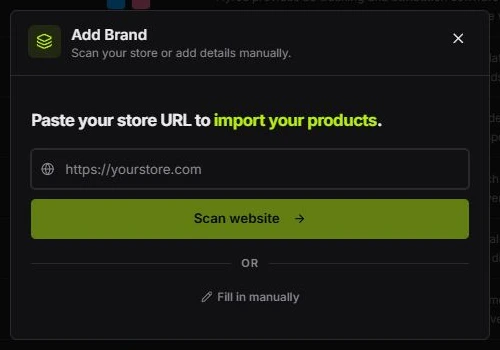
Scan a public page, or enter the brand details yourself.
- 1
Paste the exact URL
Choose Add Brand, paste the public store or product URL, then select Scan website.
 Paste, then scan
 - 2
Use manual setup if needed
Choose Fill in manually when the page cannot be scanned or you already have the details.
Manual setup - 3
Review before creating
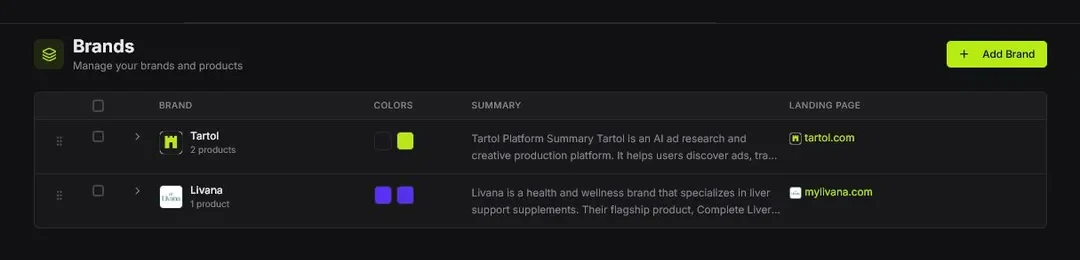
Check the name, colors, summary, and products before you use the brand elsewhere.
 Open the brand
Red labels show the exact control to use.
Watch the full walkthrough
Detailed referenceOpen this for definitions, limits, examples, and troubleshooting.
Choose the right URL
Use a public URL that loads without a login, geographic block, or password. A product page is best for one product; a store homepage is better when you want Tartol to identify several products.
Run the scan
- 1Open BrandsChoose Add Brand and paste the full URL, including https://.
- 2Scan and saveChoose Scan website, review the imported details, then choose Save Brand. Use Back if you need to enter a different URL.
- 3Review the resultLanguage and Target country are chosen in the generation form, not the Edit Brand modal. Each accepted image or copy generation remembers those values for that brand in the database. Selecting that brand later loads its saved defaults in Image Ads and Copywriter; manual changes in the current form take precedence. Different brands keep separate defaults. Existing stored values remain the fallback before a new generation, and editing other brand details does not reset them. Public API and MCP generation requests use the same preference-saving behavior; brand locale fields remain available in their contracts. Open the brand and check its name, declared favicon, English catalog summary, detected source language, screenshots, detected products, product images, and saved marketing details. The scanner reads complete public HTML first and uses a rendered-page fallback when the response is blocked, too thin, or requires browser execution. Product types use one standardized choice such as Physical product, Service, Software / SaaS, Subscription, Membership, Course, Coaching, Info product, Digital download, Event / ticket, Marketplace, Donation / fundraiser, or Other. Product media must depict the purchasable offer itself. For software, that means an authentic interface view such as a dashboard, editor, settings screen, extension, or app screen; ads, designs, reports, templates, and other outputs created with the software are excluded, as are workflow diagrams and marketing illustrations. Intangible offers do not use the broad take-images-from-the-page fallback, and an empty image set is preferred to misleading media. When one offer has several plans, Tartol checks explicit currency-and-cadence evidence across the complete page, keeps the offer as one product, and saves the supported price range plus a separate pricing model instead of selecting an arbitrary plan. Savings, seat add-ons, and comparison examples are not treated as plan prices. For non-catalog landing pages, the scan separates page-supported audiences, pains, benefits, differentiators, desired outcomes, mechanisms, objections, alternatives, and proof instead of collapsing them into one summary. Unsupported categories stay empty, and each retained research item must be backed by wording present on the scanned page. Brands initially renders 20 rows for a faster page, then automatically loads the next group as you approach the bottom; use Load more as a manual fallback.
- 4Correct weak inputsRename items, remove irrelevant images, reorder the strongest product photos, and complete missing marketing details.
Scan status and catalog display
While a scan is active, the Brands page reconciles its final status in the background so a completed image-upload phase clears without a manual refresh. A landing-page preview screenshot waits until the brand scan finishes, so it does not compete with the scan for page-collection capacity. If the local scanner is interrupted, its original scan can resume using saved work instead of requiring a duplicate brand. Unavailable catalog values appear as an em dash. The Price column shows only the monetary value because the pricing model stores cadence separately.
Why a scan can be incomplete
- The page blocks automated browsers or only loads content after a regional or cookie prompt.
- The URL is a blog, advertorial, or checkout page with little structured product information.
- Images are hidden in scripts, protected by expiring links, or too small to identify reliably.
- The page title contains promotional text instead of a clean product name.